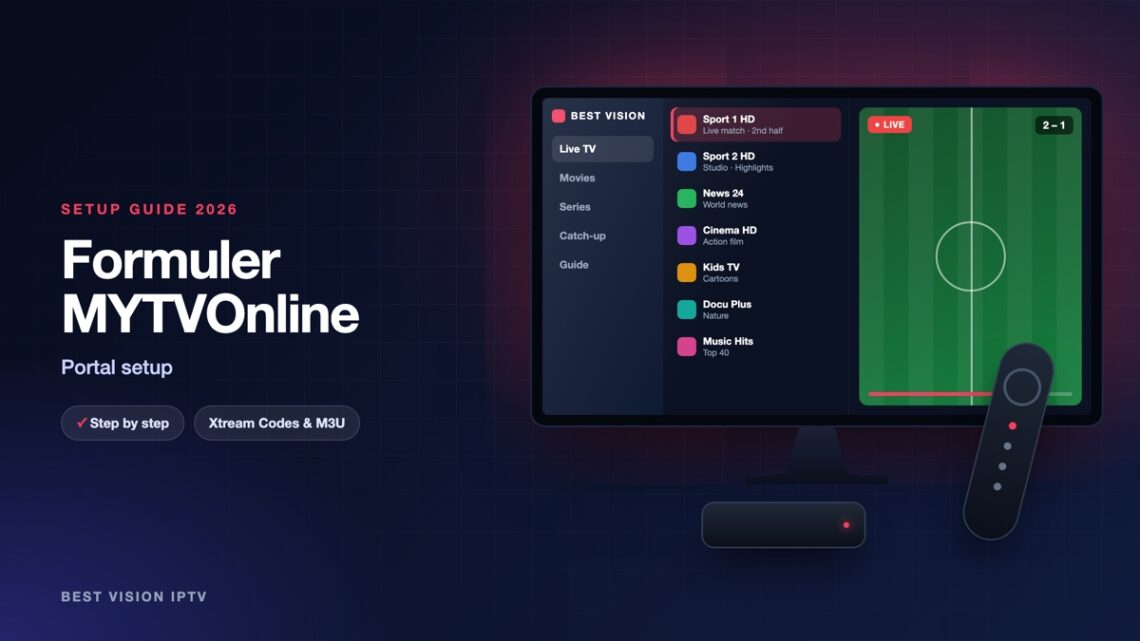
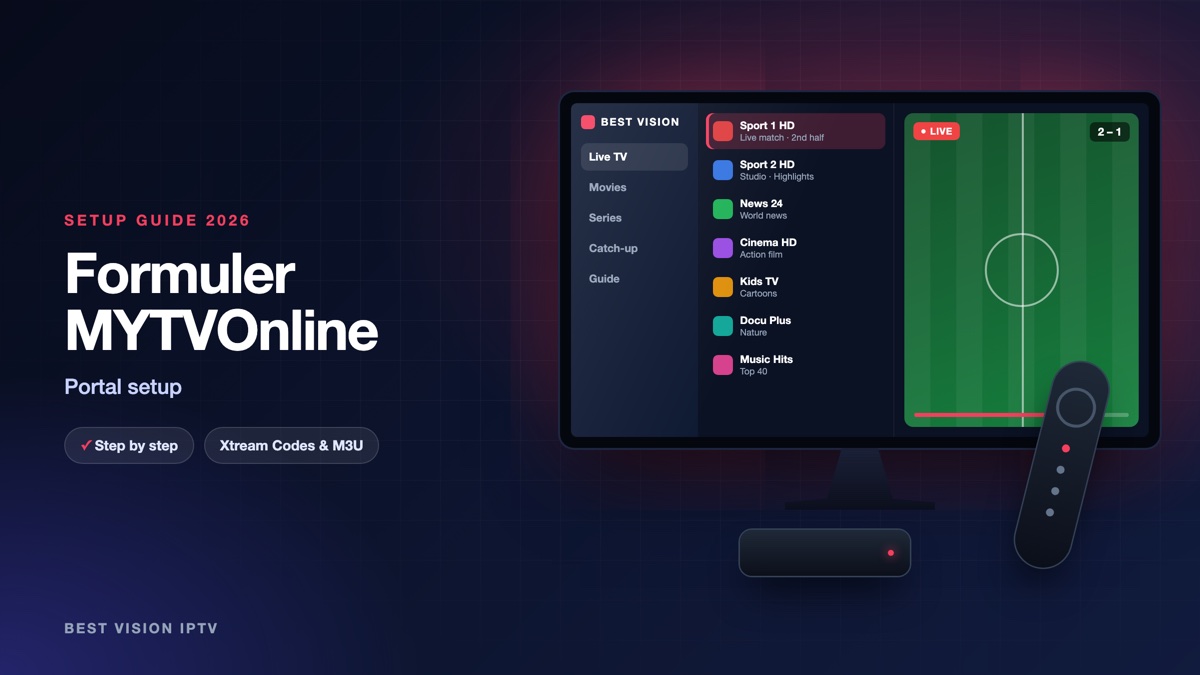
Formuler boxes come with their own television app called MYTVOnline. It is one of the most comfortable ways to watch: a proper TV guide, fast channel changes, recording to a USB drive and a remote made for live TV. Like a MAG box, a Formuler normally connects with a portal URL and an ID instead of a username. The important detail is where that ID comes from. It is not the sticker on the box. It is the ID shown inside MYTVOnline. This Formuler MYTVOnline guide shows where to find it and what to do with it.
What you need
- A Formuler box with MYTVOnline, MYTVOnline 2 or MYTVOnline 3, connected to the TV and the internet.
- The ID from the app (see step 1).
- The portal URL from us, which we send once the ID is registered.
Step 1: find the ID in Formuler MYTVOnline
- Switch on the box and open MYTVOnline from the home screen.
- On first start the app opens the connections screen. Otherwise open the menu and choose Content sources or Connections.
- Select Add Portal. At the top or the side of this screen the app shows an ID that starts with 00:1A:79.
- Write the ID down or take a photo.
Use this ID, not the MAC address printed on the box. They are different, and the portal only accepts the one from the app.
Step 2: send us the ID
Choose Formuler as your device when you order and put the ID in the field “MAC / TV ID”, or send it to us on WhatsApp. We register it and answer with your portal URL. Without the registered ID the portal refuses the box, so this step cannot be skipped.
Step 3: add the portal
- Back on the Add Portal screen, type a name in Portal nickname, for example Best Vision.
- In Portal URL type the address from our message exactly, including http://.
- Leave “Login required” off unless we told you otherwise.
- Select Connect. The app checks the portal and downloads the channels, which takes up to a minute the first time.
MYTVOnline can also load an M3U playlist through “Add Playlist”. The portal gives the better result on a Formuler, with the full guide and catch-up, so we recommend it. If you prefer the playlist, tell us and we send the link.
Getting the most out of Formuler MYTVOnline
- TV guide: press the Guide button. The grid shows what is on now and next for every channel.
- Favourites: press and hold OK on a channel to add it to a favourite group, then switch groups with the left and right buttons in the list.
- Recording: plug in a USB drive and press the record button. Recordings are stored on that drive.
- Catch-up: channels with a clock symbol let you start programmes from earlier in the day.
- Updates: keep the box firmware up to date in the Formuler settings; app updates often fix playback problems.
Formuler MYTVOnline troubleshooting
| Problem | What to do |
|---|---|
| Portal refuses the connection | The ID is not registered or was typed wrong. Send us a photo of the Add Portal screen so we can compare the ID. |
| “Portal loading failed” | Check the portal URL character by character and test the internet connection of the box. |
| Channels appear, no picture | Restart the box. In the app settings, try the other player option if your version offers one. |
| Picture stutters | Connect the box to the router with a network cable. |
| Guide is empty | Wait a few minutes after the first connection; the guide loads in the background. Then restart the app. |
Setup guides for other apps and devices
Every app below works with the same login from us. Pick the one for your device:
- Samsung & LG Smart TV: Smart IPTV (Samsung, LG) · IBO Player · SET IPTV · NET IPTV · SS IPTV (LG) · Hot IPTV (HotPlayer) · SmartOne IPTV · Bob Player
- Android, Android TV & Fire TV: IPTV Smarters Pro (Android) · IPTV Smarters (Fire TV Stick) · TiviMate · OTT Navigator · XCIPTV Player · Televizo · STB Emulator (portal) · Kodi · IPTV Extreme
- iPhone, iPad & Apple TV: Smarters Player Lite (iPhone, iPad, Apple TV) · IPTVX · Purple Playlist Player · GSE Smart IPTV · iPlayTV (Apple TV)
- Windows & Mac: IPTV Smarters Pro & VLC (PC, Mac) · MyIPTV Player (Windows)
- TV boxes with a portal: MAG box
A short overview of every device is on the How to use page, the full line-up is in the channels list, and the players are compared in the best IPTV player apps.
Frequently asked questions
Which ID do I send you: the one on the box or the one in the app?
The one in the app. Open MYTVOnline, go to Add Portal and use the ID shown there.
Does this work with MYTVOnline 2 and 3?
Yes. The screens look a little different, but both have Add Portal with a nickname and a URL.
Can I use a username and password instead?
On a Formuler we recommend the portal. A playlist link is possible through Add Playlist; ask us for it.
Can I record programmes?
Yes, MYTVOnline records to a USB drive connected to the box.
I changed my box. What now?
A new box has a new ID. Send it to us and we move your subscription to it.
Can I test before paying?
Yes. Send the ID from Formuler MYTVOnline with your free-trial request and we set up the trial for your box.
Formuler MYTVOnline needs the ID and the portal URL once. After that the box behaves like a normal TV receiver. Send us your ID with a free-trial request and try it.