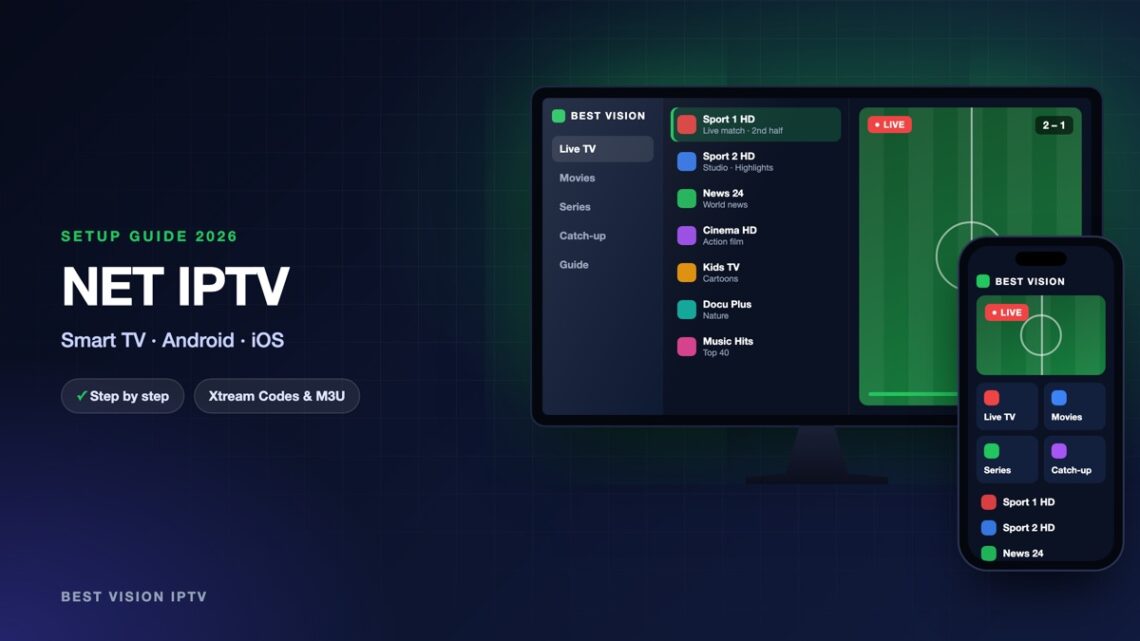
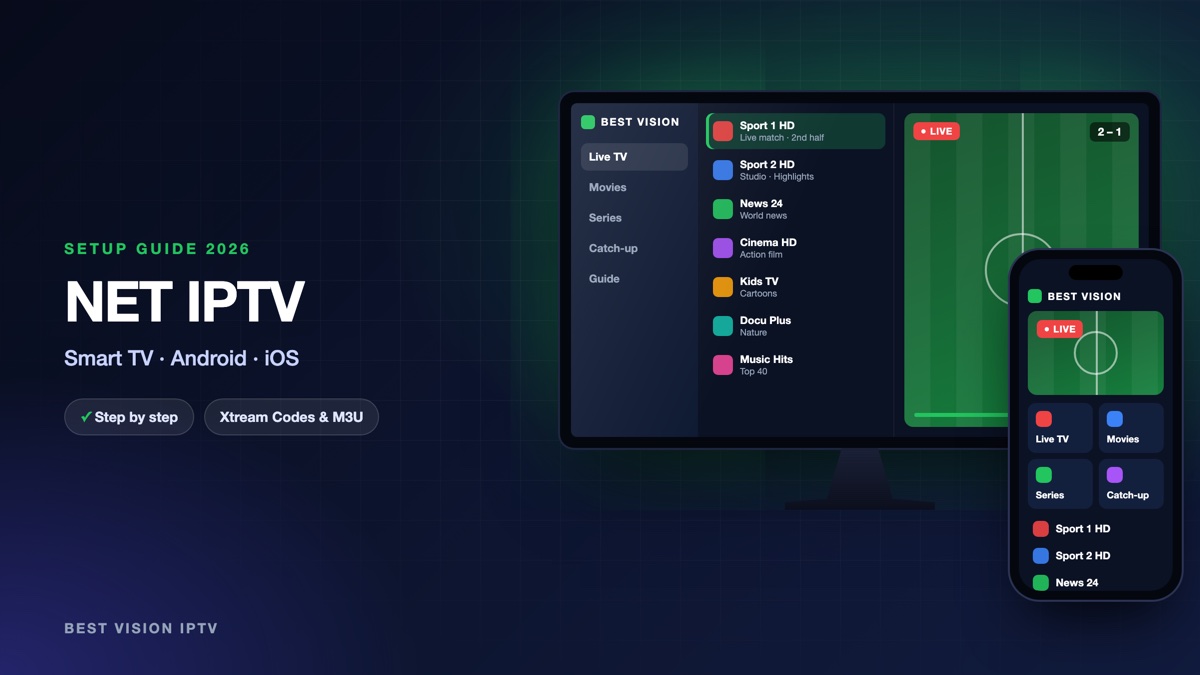
NET IPTV is a player for Smart TVs. It runs on the television itself, so you need no extra box. Like several TV apps, it does not ask for a username and password on the TV. You upload your playlist link once on the website of the app, and the TV loads it. This guide shows the NET IPTV setup in plain steps and explains the messages the app can show.
What you need for the NET IPTV setup
- A supported device. The developer lists Samsung and LG Smart TVs, Android TV sets (Sony, TCL, Philips, Xiaomi and others), Hisense TVs with VIDAA, Android phones, and Apple TV, iPhone and iPad.
- Your M3U link. We email it after your order or free trial, together with your Xtream Codes login. For this app you use the M3U link: one long address that starts with http://.
- A phone or computer to open the upload page.
Good to know: NET IPTV is made by an independent developer, not by us, and it contains no channels. The app starts as a free test version. To keep using it you pay an activation fee per device to the developer. This fee is separate from your subscription with us.
Step 1: install NET IPTV
- Samsung: press Home, open Apps and search for “NET IPTV”.
- LG: open the LG Content Store and search for “NET IPTV”.
- Android TV: search in Google Play on the TV.
- Apple TV, iPhone, iPad: search in the App Store.
- Open the app. It shows the MAC address of the device. Write it down or take a photo.
Two things to know. First, the app is not offered for every TV model: on its website the developer names Samsung TVs from 2016 to 2020 and LG TVs with webOS 1.0 to 5.0. Second, newer versions of the LG app show an APP ID instead of a MAC address. You use it in exactly the same way. If your store does not have the app, tell us your TV model on WhatsApp and we suggest another player.
Step 2: upload your playlist
- On your phone or computer open the upload page: netiptv.eu/Upload.
- In the part “UPLOAD URL”, type the MAC address or APP ID from your TV in the field MAC / APP ID.
- Press Add List and follow the page. It asks for your list: paste the M3U link from our email.
- Confirm the “I am not a robot” check, send the form and wait a few seconds.
- On the TV, restart the app. According to the developer, the key 0 on the remote also reloads the list.
| Field or option | What to do |
|---|---|
| MAC / APP ID | The address or ID shown in the app on your TV. Type it exactly, character by character. |
| URL of the list | The M3U link from our email, complete, from http:// to the last character. |
| Keep online | Leave it off. The developer says to use it only if the list does not load on your TV. |
| Delete All | Removes every list stored for your MAC address. Use it before you upload a new link. |
The part “Forgot / Delete Password” on the same page is only for people who locked their list with a password.
Step 3: watch, and what to set first
- First load. A large list needs a moment the first time.
- Groups. Use the group list to jump between countries and categories instead of scrolling.
- Cable or Wi-Fi. A TV has two MAC addresses, one for Wi-Fi and one for cable. Decide how the TV is connected before you upload. A cable gives the more stable picture.
- New link. If we send you a new link, use Delete All and upload again.
Test version and activation
While the test version runs, the app works with your list. When the test period ends, the developer removes the list from the TV and from its server, and the app must be activated. Activation is done by the developer on the “Payment” page of the same website with your MAC address or APP ID. The current fee is shown there. Two points from the developer’s own rules are worth knowing: the fee is not refunded if your list does not work, so test everything first with our free trial; and after you change between Wi-Fi and cable, the second MAC address of the same TV is activated automatically when you restart the app. The “Check MAC” page shows the status of your device. We do not receive this fee.
Troubleshooting the NET IPTV setup
| Message or problem | What to do |
|---|---|
| “Check URL” or “No content uploaded” | The link did not arrive or is incomplete. Use Delete All, then upload the full M3U link again and restart the app. |
| “Server (URL) connection timeout” | The TV cannot reach the list. Check the internet connection of the TV and upload the link again. If it stays, send us the message on WhatsApp. |
| List disappears after a restart | The list is too large for the memory of the TV. Upload again with Keep online switched on. |
| “Failed” or “Cannot connect” on a channel | Try another channel. If all channels fail, check that your trial or subscription is active and write to us. |
| Samsung TV keeps an old list | Switch the TV off and on again to clear its memory, then open the app. |
| MAC address is different from before | You changed between Wi-Fi and cable. Upload the list for the address the app shows now. |
Setup guides for other apps and devices
Every app below works with the same login from us. Pick the one for your device:
- Samsung & LG Smart TV: Smart IPTV (Samsung, LG) · IBO Player · SET IPTV · SS IPTV (LG) · Hot IPTV (HotPlayer) · SmartOne IPTV · Bob Player
- Android, Android TV & Fire TV: IPTV Smarters Pro (Android) · IPTV Smarters (Fire TV Stick) · TiviMate · OTT Navigator · XCIPTV Player · Televizo · STB Emulator (portal) · Kodi · IPTV Extreme
- iPhone, iPad & Apple TV: Smarters Player Lite (iPhone, iPad, Apple TV) · IPTVX · Purple Playlist Player · GSE Smart IPTV · iPlayTV (Apple TV)
- Windows & Mac: IPTV Smarters Pro & VLC (PC, Mac) · MyIPTV Player (Windows)
- TV boxes with a portal: MAG box · Formuler MYTVOnline
A short overview of every device is on the How to use page, the full line-up is in the channels list, and the players are compared in the best IPTV player apps.
Frequently asked questions
Is NET IPTV free?
The app starts as a free test version. To keep using it, the developer asks for an activation fee per device on the app’s website. This is separate from your subscription.
Where do I find the MAC address?
Open the app on the TV. On newer LG TVs the app shows an APP ID instead; it is used the same way on the upload page.
Can I log in with username and password?
For the NET IPTV setup you use the M3U link. It contains your username and password, so nothing else is needed.
Does the app include channels?
No. NET IPTV is only a player. The channels come from your own subscription.
Can I use it on two TVs?
Yes. Upload the link for each TV with its own MAC address. How many screens can play at the same time depends on your plan.
Can I try it first?
Yes. Ask for a free trial and do the NET IPTV setup with the trial link.
The NET IPTV setup is one upload and one restart. After that the TV starts with your channels. Ask for a free trial and test it on your own TV first.