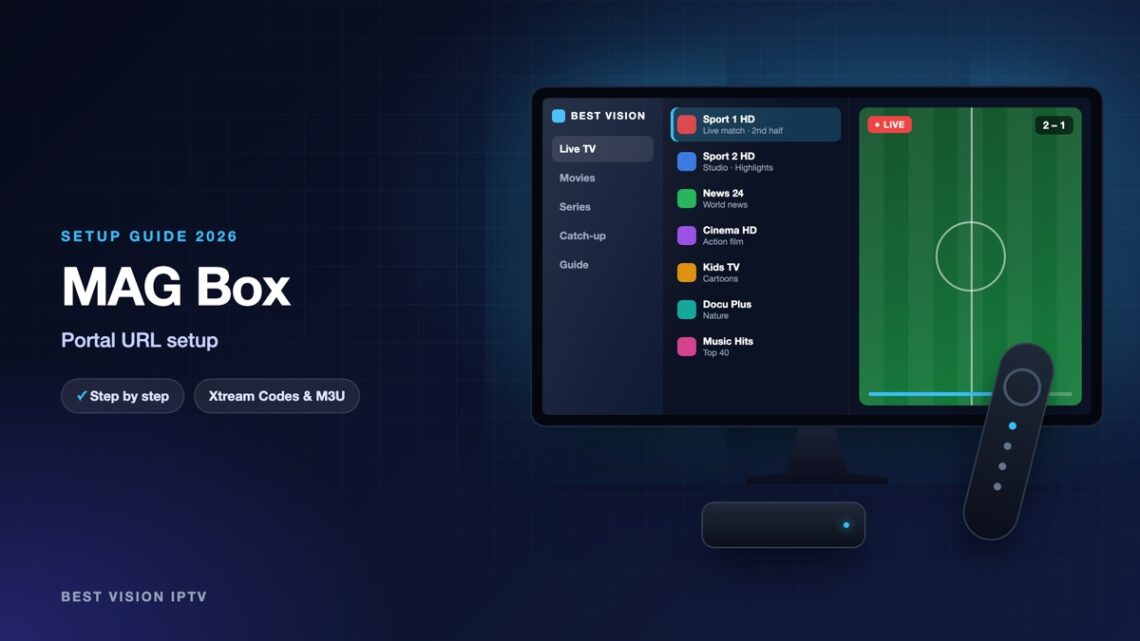
MAG boxes from Infomir were built for one job: television over the internet. They start straight into the TV portal, the remote has real channel buttons, and there is nothing else on the device to distract. The setup is different from an app on a phone. There is no login with username and password. The box identifies itself with its MAC address, and the portal URL tells it where to find the channels. Once both are in place, the box loads your channels every time it is switched on. This MAG box IPTV guide shows each step in order.
What you need for a MAG box IPTV setup
- A MAG box connected to the TV with HDMI and to the router, preferably with a network cable.
- The MAC address of the box. It is printed on the label under the box and on the carton. It starts with 00:1A:79 followed by three more pairs.
- The portal URL from us. We can only send it after we have your MAC address.
Step 1: send us the MAC address
When you order, choose MAG as your device and type the MAC address in the field “MAC / TV ID”. If you already ordered without it, send it to us on WhatsApp or by email. We add the address to your subscription and reply with your personal portal URL. This is the step people most often get wrong, so check every character: a single wrong digit and the box is refused later.
Step 2: enter the portal URL on the MAG box
- Switch on the box. If a portal starts loading, press the SETUP or SET button on the remote to open the settings. On a new box you land in the inner menu: choose Settings.
- Open System settings.
- Open Servers and then Portals.
- In Portal 1 name type any name, for example Best Vision.
- In Portal 1 URL type the portal URL from our message, exactly as written, with http:// in front.
- Press OK to save, then press EXIT twice.
- Choose Restart portal (or switch the box off and on). The box loads the portal and the channels appear.
Typing a URL with the remote takes patience. Press the KB button on the remote to show the on-screen keyboard, or plug a USB keyboard into the box.
Step 3: set the time server (recommended)
If the clock of the box is wrong, the TV guide shows the wrong programmes. In the same Servers menu open General and type pool.ntp.org in the field NTP server. Then go to System settings, Advanced settings and choose your time zone. After the next restart the guide matches the real time.
Using the portal
When the MAG box IPTV portal has loaded, the main menu has a few sections:
- TV: the channel list with groups on the left. OK opens a channel, the coloured buttons sort and add favourites.
- Video club: films and series on demand.
- TV guide: press the EPG or Guide button on the remote while a channel is selected.
- Favourites: the yellow button adds the selected channel to your favourites list.
Troubleshooting a MAG box IPTV connection
| Message or problem | What to do |
|---|---|
| “STB blocked” | The box reached the portal but the MAC address is not registered, or the subscription has ended. Send us the MAC address from the label again so we can compare it. |
| “Page loading error” | The portal URL has a typing mistake, or the box has no internet. Check the URL letter by letter and test the network under System settings, Network. |
| Stuck on “Loading portal” | Restart the router and the box. If you use Wi-Fi, try a cable. |
| Channels load, picture freezes | Use a network cable. MAG boxes are much more stable on a wired connection. |
| TV guide shows wrong times | Set the NTP server and the time zone as described in step 3. |
Setup guides for other apps and devices
Every app below works with the same login from us. Pick the one for your device:
- Samsung & LG Smart TV: Smart IPTV (Samsung, LG) · IBO Player · SET IPTV · NET IPTV · SS IPTV (LG) · Hot IPTV (HotPlayer) · SmartOne IPTV · Bob Player
- Android, Android TV & Fire TV: IPTV Smarters Pro (Android) · IPTV Smarters (Fire TV Stick) · TiviMate · OTT Navigator · XCIPTV Player · Televizo · STB Emulator (portal) · Kodi · IPTV Extreme
- iPhone, iPad & Apple TV: Smarters Player Lite (iPhone, iPad, Apple TV) · IPTVX · Purple Playlist Player · GSE Smart IPTV · iPlayTV (Apple TV)
- Windows & Mac: IPTV Smarters Pro & VLC (PC, Mac) · MyIPTV Player (Windows)
- TV boxes with a portal: Formuler MYTVOnline
A short overview of every device is on the How to use page, the full line-up is in the channels list, and the players are compared in the best IPTV player apps.
Frequently asked questions
Where is the MAC address of my MAG box?
On the label under the box and on the original carton. It starts with 00:1A:79.
Why do you need my MAC address?
A MAG box has no username and password. The portal recognises the box by its MAC address, so we have to register it for your subscription.
What does “STB blocked” mean?
The portal does not know this MAC address, or the subscription has expired. Send us the address so we can check it.
Can I use the same subscription on a MAG box and a phone?
A MAG subscription is tied to the box. Tell us if you also want a login for an app; we will tell you what your plan includes.
Which MAG models are supported?
The MAG box IPTV setup follows the same menu path on the common models, from the MAG 250 up to the current 4K boxes. Names of menu items can differ slightly.
Can I test before paying?
Yes. Ask for a free trial and include your MAC address, and we set up the MAG box IPTV trial for that box.
After the first MAG box IPTV setup the box needs no attention: switch it on and the portal starts. Send us your MAC address with a free-trial request and try it on your own box.