- What you need for the MyIPTV Player setup
- Step 1: install MyIPTV Player from the Microsoft Store
- Step 2: MyIPTV Player setup with your M3U link
- Alternative: log in with Xtream Codes
- Add the TV guide
- After the first start: settings and tips
- Troubleshooting the MyIPTV Player setup
- Setup guides for other apps and devices
- Frequently asked questions
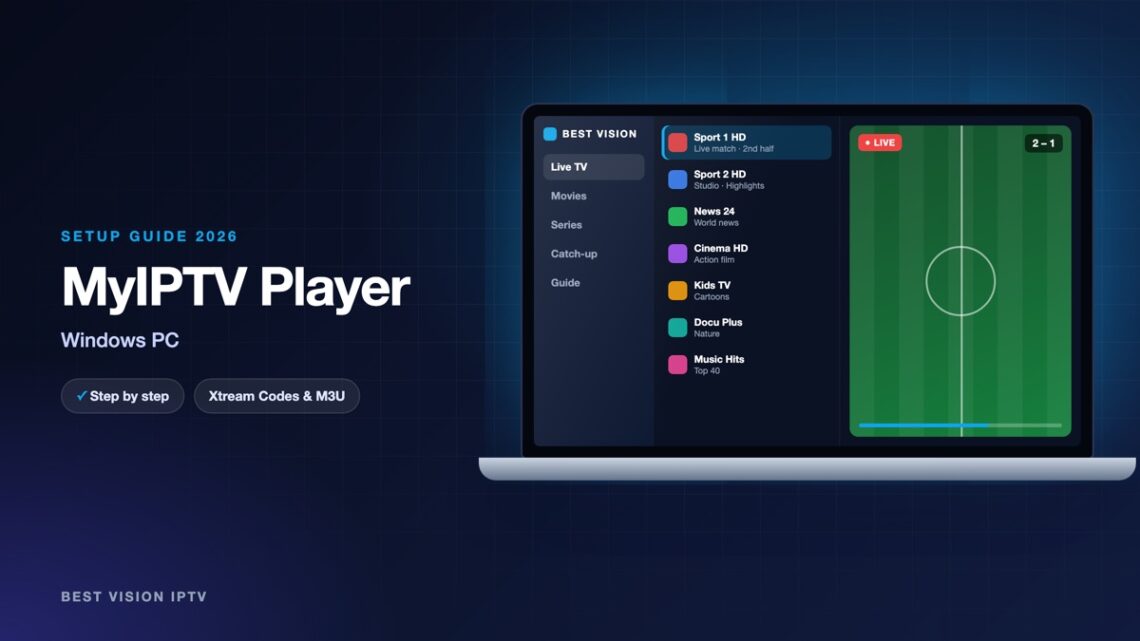
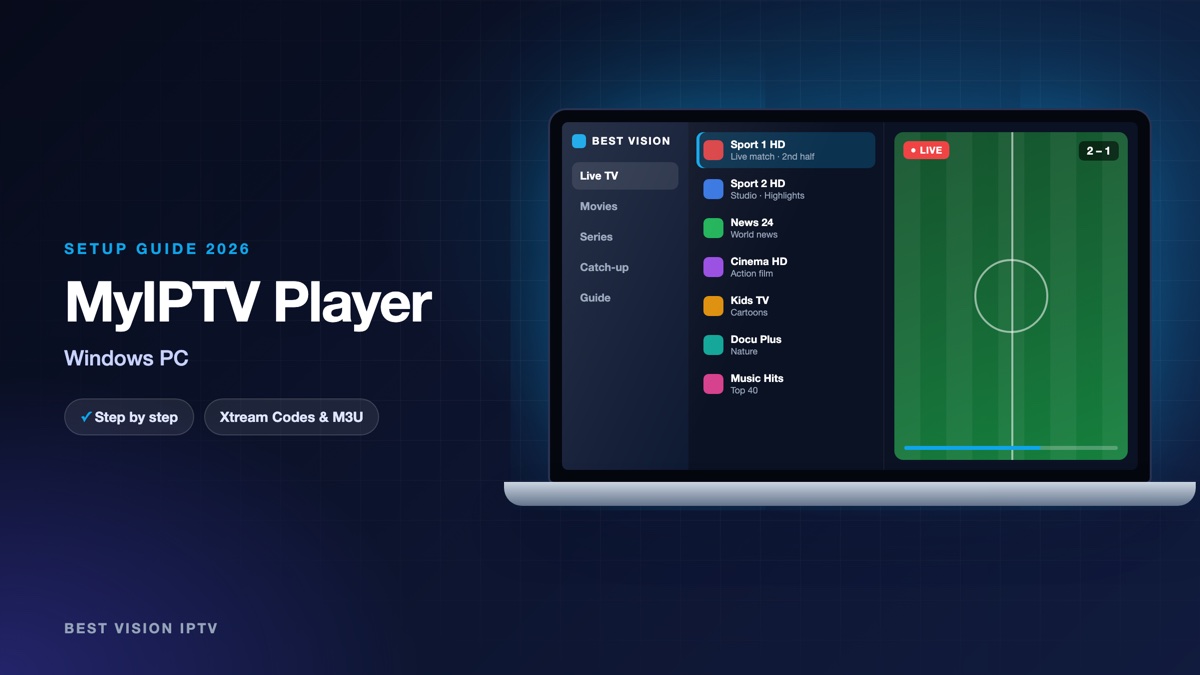
MyIPTV Player is a free IPTV player for Windows. You get it from the Microsoft Store like any other app, so there is no installer file to download from a website. It sorts the channels into groups, shows a TV guide and can play films and series. One thing confuses almost everyone the first time: after you add a playlist, the channel list is still empty. You have to select the playlist and refresh it once. This guide shows every click, including that one.
What you need for the MyIPTV Player setup
- A Windows computer. The Microsoft Store lists Windows 10 (version 1809 or newer) as the minimum. Windows 11 works as well. The Store also lists the app for the Xbox console.
- Your login from us. After your order or free trial we email you an M3U link and the Xtream Codes details: username, password and server URL.
- A stable connection. About 10 Mbit/s for HD and about 25 Mbit/s for 4K.
Good to know: MyIPTV Player is made by an independent developer, not by us. It is free in the Microsoft Store at the time of writing. It contains no channels; they come from your subscription.
Step 1: install MyIPTV Player from the Microsoft Store
- Open the Microsoft Store from the Start menu and search for “MyIPTV Player”.
- Check the publisher. The app in this guide is MyIPTV Player from Vbfnet Apps. The Store shows other players with similar names.
- Click Get (or Install) and wait for the download.
- Open the app. The tabs are at the top of the window.
Step 2: MyIPTV Player setup with your M3U link
- Open the Settings tab.
- Click Add new playlist and EPG source.
- Go to the part called Remote channel list. Type a name and paste the M3U link from our email (see the table below).
- Click Add remote list.
- Go back to Settings. In the drop-down list for the channel playlist, choose the name you just typed.
- Click Refresh next to it and wait. A large list needs one or two minutes.
- Open the Channels tab. Your groups and channels are there.
| Field | What you type |
|---|---|
| Remote channel list: name | Anything you like, for example “Best Vision”. You choose this name again in the drop-down list. |
| Remote channel list: address | The complete M3U link from our email, from http:// to the last character. |
| Program guide: name and address | Only needed for the TV guide. See the section about the guide below. |
Copy the link from the email and paste it with Ctrl + V. A link that is typed by hand almost always contains a mistake.
Alternative: log in with Xtream Codes
According to its Store page, the app also accepts an Xtream Codes login. Look for the Xtream option in Settings, next to the playlist options. Enter the server URL (with http:// and the port), the username and the password in the fields the app shows, and add the entry. Then load it the same way as in step 2.
The developer lists films, series and catch-up as functions of the Xtream login. If you want more than live channels, this is the better choice.
Add the TV guide
With an M3U link, the guide is a second address that you add once:
- In Settings open Add new playlist and EPG source again.
- In the part for the program guide, type a name and paste the guide address (EPG URL).
- Click Add EPG source.
- Go back, choose that name in the drop-down list for the EPG source and click Refresh.
If the email from us does not show a guide address, ask for it on WhatsApp. The first download of the guide can take a few minutes.
After the first start: settings and tips
- Playback engine. In Settings you can choose whether the app plays video with the Windows player or with the VLC library. If a channel has no picture or no sound, switch to the other one and try again.
- Hide groups. The app can filter out channel groups you never watch. A shorter list is easier to use.
- Favourites. Add your regular channels to the favourites so they are one click away.
- PIN protection. Set a PIN if children use the computer.
- On the TV. For the living room, connect the laptop to the TV with an HDMI cable. It is more stable than wireless screen sharing.
Troubleshooting the MyIPTV Player setup
| Problem | What to do |
|---|---|
| The Channels tab is empty | The playlist was added but not loaded. In Settings, select it in the drop-down list and click Refresh. |
| Refresh ends, still no channels | The link is incomplete. Add it again with the whole M3U link, without a line break or space. |
| A channel opens but stays black | Change the playback engine in Settings (Windows player or VLC library) and start the channel again. |
| The TV guide is empty | Add the EPG source, select it in its drop-down list and click Refresh. |
| The picture stutters | Pause downloads and cloud backups, close browser tabs with video, and use a network cable if you can. |
| The Store does not offer the app | Install the pending Windows updates. The app needs Windows 10 version 1809 or newer. |
Still stuck? Send us a screenshot on WhatsApp and we look at it together.
Setup guides for other apps and devices
Every app below works with the same login from us. Pick the one for your device:
- Samsung & LG Smart TV: Smart IPTV (Samsung, LG) · IBO Player · SET IPTV · NET IPTV · SS IPTV (LG) · Hot IPTV (HotPlayer) · SmartOne IPTV · Bob Player
- Android, Android TV & Fire TV: IPTV Smarters Pro (Android) · IPTV Smarters (Fire TV Stick) · TiviMate · OTT Navigator · XCIPTV Player · Televizo · STB Emulator (portal) · Kodi · IPTV Extreme
- iPhone, iPad & Apple TV: Smarters Player Lite (iPhone, iPad, Apple TV) · IPTVX · Purple Playlist Player · GSE Smart IPTV · iPlayTV (Apple TV)
- Windows & Mac: IPTV Smarters Pro & VLC (PC, Mac)
- TV boxes with a portal: MAG box · Formuler MYTVOnline
A short overview of every device is on the How to use page, the full line-up is in the channels list, and the players are compared in the best IPTV player apps.
Frequently asked questions
Is MyIPTV Player free?
Yes, at the time of writing the Microsoft Store lists it as free. It is a player only; the channels come from your subscription.
Does MyIPTV Player work on Windows 11?
Yes. The Store lists Windows 10 version 1809 or newer, which includes Windows 11.
Is there a version for Mac?
No, it is a Microsoft Store app. On a Mac, use one of the players from our other guides with the same login.
M3U link or Xtream Codes?
Both work. The M3U link is the classic way in this app. The Xtream login adds films, series and catch-up.
Do I have to refresh the list every time?
No. Refresh it when channels have changed or when we send you a new link.
Can I test before I pay?
Yes. Ask for a free trial and do the MyIPTV Player setup with the trial login. How many screens can play at the same time depends on your plan.
Install, add the link, refresh: that is the whole MyIPTV Player setup. Ask for a free trial and try it on your own computer tonight.