- What you need for IPTV Smarters Pro Android
- Step 1: install IPTV Smarters Pro on Android
- Step 2: log in with Xtream Codes
- Alternative: log in with an M3U link
- After the first start: TV guide, favourites and settings
- Troubleshooting IPTV Smarters Pro Android problems
- Setup guides for other apps and devices
- Frequently asked questions
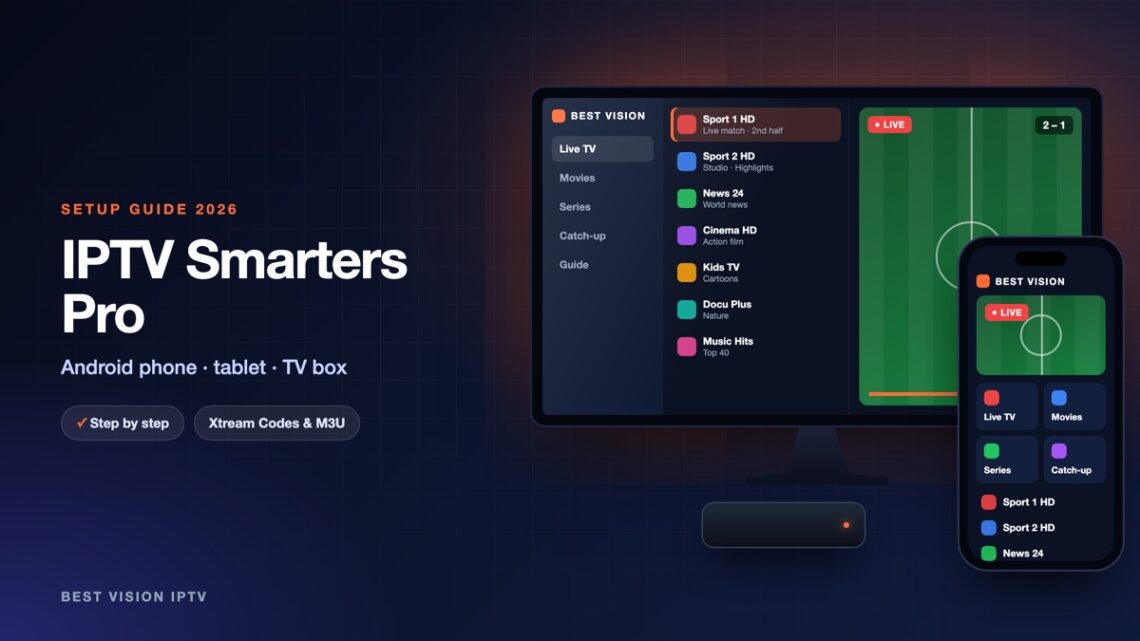
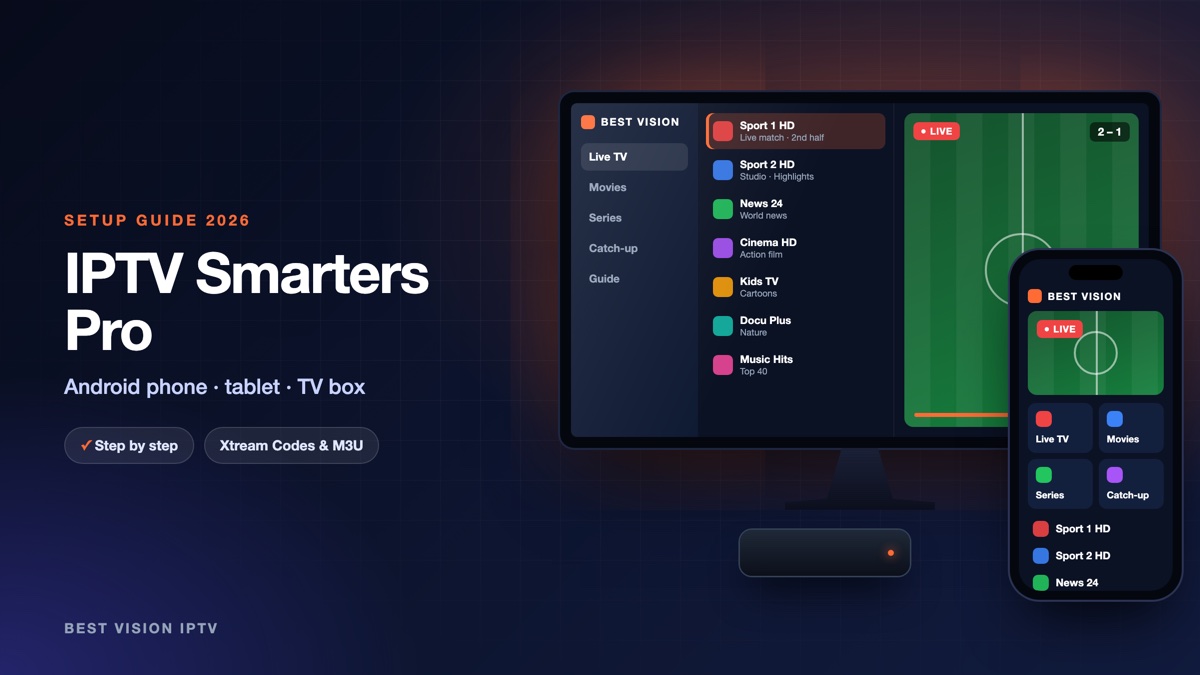
IPTV Smarters Pro is the player most of our customers use on Android. It works the same way on a phone, a tablet and an Android TV box, it shows Live TV, films and series in separate sections, and it loads the TV guide by itself when you log in with Xtream Codes. This IPTV Smarters Pro Android guide walks through the whole setup, from the download to the first channel.
What you need for IPTV Smarters Pro Android
- An Android device. A phone or tablet with Android 5 or newer, or a TV box with Android TV or Google TV (Xiaomi Mi Box, Nvidia Shield, Chromecast with Google TV and similar).
- Your login. After your order or free trial we email you three things: a username, a password and a server URL. Keep that email open while you set up the app.
- A stable connection. About 10 Mbit/s is enough for HD and about 25 Mbit/s for 4K, per screen.
No login yet? Check the spam folder first, then write to us on WhatsApp and we send it again.
Step 1: install IPTV Smarters Pro on Android
- Open Google Play on the device and search for “Smarters Pro”.
- Check the developer name before you install. The original app is published by Tech Smarters. Google Play lists many look-alike apps with almost the same name and icon; they are not the same player.
- Press Install and wait for the download to finish.
If Google Play says the app is not available for your device, the developer also offers the Android file (APK) on the official IPTV Smarters website. Download it with the browser of the device, and when Android asks, allow that browser to install apps. Only use the official website for this: an APK from a random site can contain anything.
Step 2: log in with Xtream Codes
- Open the app and accept the terms of use.
- Choose Login with Xtream Codes API.
- Fill in the four fields exactly as in our email (see the table below).
- Press Add User. The app downloads the channels, films and series; the first time this takes up to a minute.
- Tap your profile to enter. You now see Live TV, Movies and Series.
| Field | What you type |
|---|---|
| Name / playlist name | Anything you like, for example “Best Vision”. It is only a label on your screen. |
| Username | The username from our email. Capital and small letters matter. |
| Password | The password from our email, with no space before or after. |
| URL / server | The server address from our email. It starts with http:// and ends with the port number. |
In the IPTV Smarters Pro Android app, Xtream Codes is the method we recommend, because the TV guide and the catch-up section come with it automatically.
Alternative: log in with an M3U link
Some customers prefer one long link instead of three fields. The app accepts that too:
- On the first screen choose Load Your Playlist or File/URL.
- Give the playlist a name, select M3U URL and paste the link from our email.
- Press Add User and wait until the list has loaded.
With an M3U link the TV guide is not always filled in. If it stays empty, switch to the Xtream Codes login: it uses the same subscription.
After the first start: TV guide, favourites and settings
A few settings make IPTV Smarters Pro Android nicer to use every day:
- TV guide. Open Live TV and choose “Install EPG” once. The programme information appears next to each channel after a short wait.
- Favourites. Press and hold a channel and add it to favourites, so your own list opens first next time.
- Player and stream format. In Settings you can change the player and the stream format. If a channel stays black, try the other stream format before anything else.
- Parental control. Set a PIN in Settings to lock the categories you do not want children to open.
Troubleshooting IPTV Smarters Pro Android problems
| Problem | What to do |
|---|---|
| “Invalid details” or login failed | Type the URL with http:// in front and the port at the end, and check capital letters in the username and password. Copy and paste is safer than typing. |
| Channels list stays empty | Close the app completely, open it again and use “Refresh channels, movies and series” in the menu. |
| Picture freezes | Use 5 GHz Wi-Fi or a cable, restart the router, and close other apps that download in the background. |
| Sound but no picture | Change the player or the stream format in Settings, then start the channel again. |
| TV guide is empty | Run “Install EPG” again and give it two minutes. |
Still stuck? Send us a photo of the screen on WhatsApp. We usually see the cause at once.
Setup guides for other apps and devices
Every app below works with the same login from us. Pick the one for your device:
- Samsung & LG Smart TV: Smart IPTV (Samsung, LG) · IBO Player · SET IPTV · NET IPTV · SS IPTV (LG) · Hot IPTV (HotPlayer) · SmartOne IPTV · Bob Player
- Android, Android TV & Fire TV: IPTV Smarters (Fire TV Stick) · TiviMate · OTT Navigator · XCIPTV Player · Televizo · STB Emulator (portal) · Kodi · IPTV Extreme
- iPhone, iPad & Apple TV: Smarters Player Lite (iPhone, iPad, Apple TV) · IPTVX · Purple Playlist Player · GSE Smart IPTV · iPlayTV (Apple TV)
- Windows & Mac: IPTV Smarters Pro & VLC (PC, Mac) · MyIPTV Player (Windows)
- TV boxes with a portal: MAG box · Formuler MYTVOnline
A short overview of every device is on the How to use page, the full line-up is in the channels list, and the players are compared in the best IPTV player apps.
Frequently asked questions
Is IPTV Smarters Pro free on Android?
The player itself is free to install. It does not include channels: you add your own subscription with the login we send you.
Which IPTV Smarters app is the real one on Google Play?
Look at the developer name. The original is published by Tech Smarters and is listed as “Smarters Pro”. Many copies use a similar name.
Can I use the same login on my phone and my TV box?
Yes. The IPTV Smarters Pro Android app accepts the same login on several devices. How many screens can play at the same time depends on your plan.
Xtream Codes or M3U: which one should I choose?
Xtream Codes. It is three short fields, and the TV guide and catch-up load automatically.
Do I have to set it up again when I renew?
No. When you renew, the same login keeps working and the app needs no change.
Can I test before I pay?
Yes. Ask for a free trial and try the IPTV Smarters Pro Android setup on your own device first.
That is the whole IPTV Smarters Pro Android setup: install, log in, done. Try it on your own device with a free trial and decide afterwards.