- What you need for IPTV Smarters Firestick
- Step 1: install the Downloader app
- Step 2: allow Downloader to install apps
- Step 3: download IPTV Smarters with Downloader
- Step 4: log in on the IPTV Smarters Firestick app
- Tips for a smooth IPTV Smarters Firestick experience
- IPTV Smarters Firestick troubleshooting
- Setup guides for other apps and devices
- Frequently asked questions
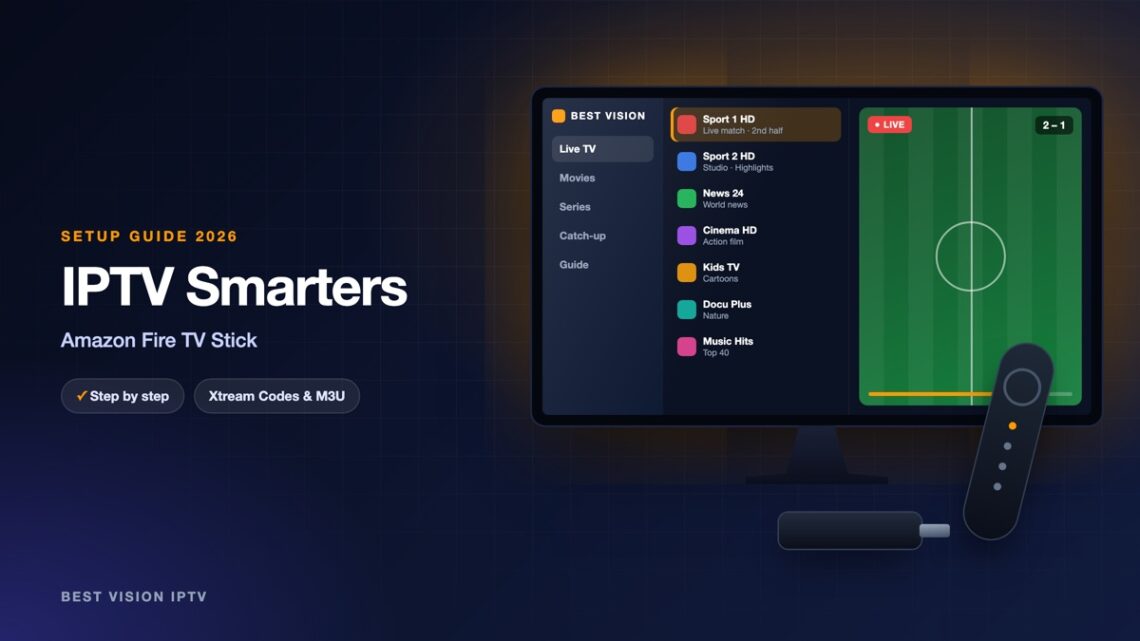
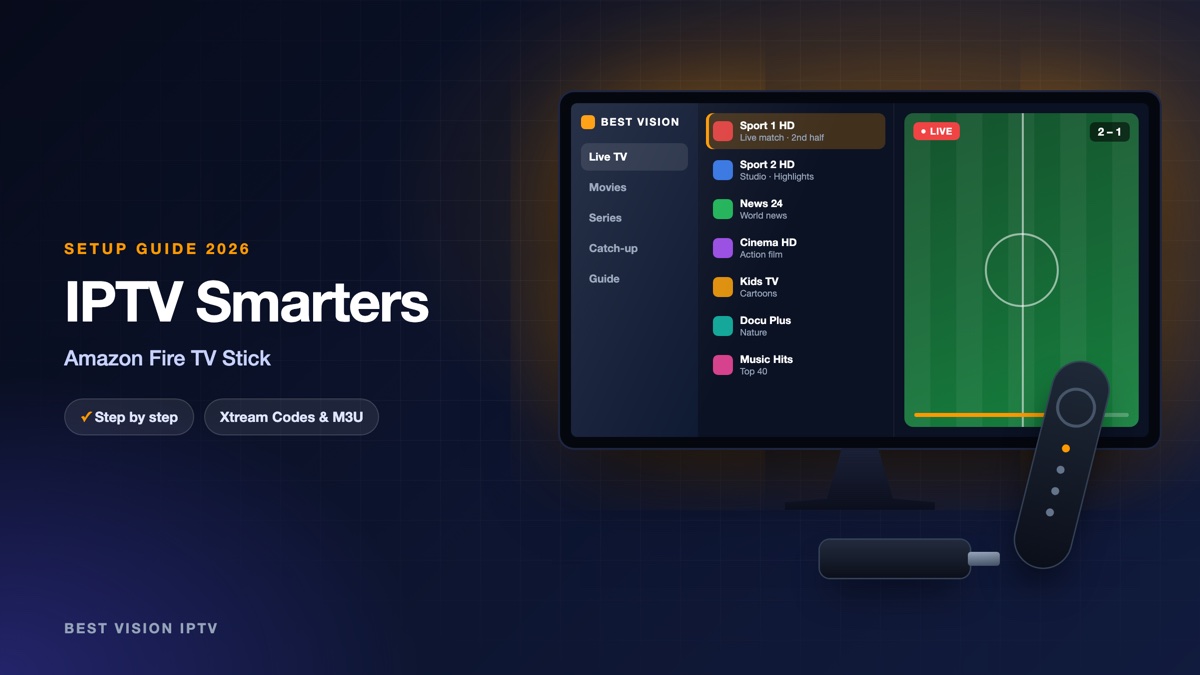
The Amazon Fire TV Stick is the cheapest way to turn any TV with an HDMI port into a streaming TV, and it is the device we set up most often. IPTV Smarters Pro is not in the Amazon Appstore, so it is installed with a small helper app called Downloader. It sounds technical; in practice the IPTV Smarters Firestick installation is a handful of clicks with the remote. The menus on a Fire TV can look slightly different from one model to the next, but the names below are the same on all of them.
What you need for IPTV Smarters Firestick
- A Fire TV device. Fire TV Stick Lite, Fire TV Stick 4K, 4K Max or Fire TV Cube, connected to your TV and signed in to an Amazon account.
- Your login from us. Username, password and server URL, sent by email after your order or free trial.
- Wi-Fi close to the TV. The stick sits behind the TV, where the signal is often weak. If the picture stutters later, this is the first thing to check.
Step 1: install the Downloader app
- On the Fire TV home screen go to Find and choose Search.
- Type “Downloader” and select it in the results. The icon is orange with a white arrow.
- Press Get (or Download) and wait until it is installed.
Step 2: allow Downloader to install apps
- Open Settings (the gear icon) and go to My Fire TV.
- Open Developer options.
- Choose Install unknown apps and switch it on for Downloader.
Developer options is not in the menu? On newer sticks it is hidden. Go to Settings, My Fire TV, About, select the first line (the name of your device) and press the select button seven times. A message confirms that you are a developer; go back one step and the menu is there.
Step 3: download IPTV Smarters with Downloader
- Open Downloader and click in the address field on the Home tab.
- Type the download address of IPTV Smarters Pro for Fire TV. The developer publishes it on the official IPTV Smarters website; if you are not sure, ask us on WhatsApp and we send you the current address.
- Press Go. When the download ends, choose Install, then Done.
- Downloader now offers to delete the installer file. Choose Delete twice: the app stays, and you get the storage space back.
Step 4: log in on the IPTV Smarters Firestick app
- Open IPTV Smarters Pro from “Your apps and channels” and accept the terms.
- Choose Login with Xtream Codes API.
- Fill in a name, your username, your password and the server URL.
- Select Add User and wait while the channels load.
| Field | What you type |
|---|---|
| Name / playlist name | Anything you like, for example “Best Vision”. It is only a label on your screen. |
| Username | The username from our email. Capital and small letters matter. |
| Password | The password from our email, with no space before or after. |
| URL / server | The server address from our email. It starts with http:// and ends with the port number. |
Typing with the remote is slow. The free Amazon Fire TV app for phones gives you a keyboard on the phone screen, which makes the long server URL much easier.
Tips for a smooth IPTV Smarters Firestick experience
- Put the app on the home screen. In “Your apps and channels”, highlight IPTV Smarters, press the menu button (three lines) and choose Move to front.
- Restart instead of unplugging. Hold the Select and Play/Pause buttons together for about five seconds to restart the stick.
- Clear the cache now and then. Settings, Applications, Manage installed applications, IPTV Smarters Pro, Clear cache. Do not choose Clear data unless you want to log in again.
- Use the HDMI extender. The short cable in the box moves the stick away from the back of the TV and improves Wi-Fi reception.
IPTV Smarters Firestick troubleshooting
| Problem | What to do |
|---|---|
| Downloader cannot install the file | Step 2 was skipped or was set for another app. Open Install unknown apps again and switch it on for Downloader. |
| Login failed | Check the URL: http:// in front, port at the end, no spaces. Capital letters matter in the username and password. |
| “Not enough storage” | Delete the installer file in Downloader and remove apps you do not use. |
| Buffering in the evening | Restart the router and the stick, use the 5 GHz Wi-Fi band, and move the stick with the HDMI extender. |
| App closes by itself | Clear the cache of the app and restart the stick. |
Setup guides for other apps and devices
Every app below works with the same login from us. Pick the one for your device:
- Samsung & LG Smart TV: Smart IPTV (Samsung, LG) · IBO Player · SET IPTV · NET IPTV · SS IPTV (LG) · Hot IPTV (HotPlayer) · SmartOne IPTV · Bob Player
- Android, Android TV & Fire TV: IPTV Smarters Pro (Android) · TiviMate · OTT Navigator · XCIPTV Player · Televizo · STB Emulator (portal) · Kodi · IPTV Extreme
- iPhone, iPad & Apple TV: Smarters Player Lite (iPhone, iPad, Apple TV) · IPTVX · Purple Playlist Player · GSE Smart IPTV · iPlayTV (Apple TV)
- Windows & Mac: IPTV Smarters Pro & VLC (PC, Mac) · MyIPTV Player (Windows)
- TV boxes with a portal: MAG box · Formuler MYTVOnline
A short overview of every device is on the How to use page, the full line-up is in the channels list, and the players are compared in the best IPTV player apps.
Frequently asked questions
Is IPTV Smarters in the Amazon Appstore?
No. On a Fire TV Stick it is installed with the Downloader app, as shown in this guide.
Is it safe to switch on “Install unknown apps”?
The setting only lets the Downloader app install files you choose yourself. Use it only for apps from their official source, and you can switch it off again afterwards.
Does this work on every Fire TV Stick?
Yes: Lite, standard, 4K, 4K Max and the Fire TV Cube all follow the same steps.
Do I need a 4K stick for a good picture?
No. A standard stick plays HD without trouble. The 4K models have more memory, which helps when you switch channels often.
Can I use the same login on my phone too?
Yes. Set up the app on the phone with the same details. The number of screens that can play at the same time depends on your plan.
Can I try it first?
Yes, ask for a free trial and run the IPTV Smarters Firestick setup on your own stick before you decide.
Once IPTV Smarters is on the stick, you do not have to repeat any of this: a renewal keeps the same login. Test it tonight with a free trial.