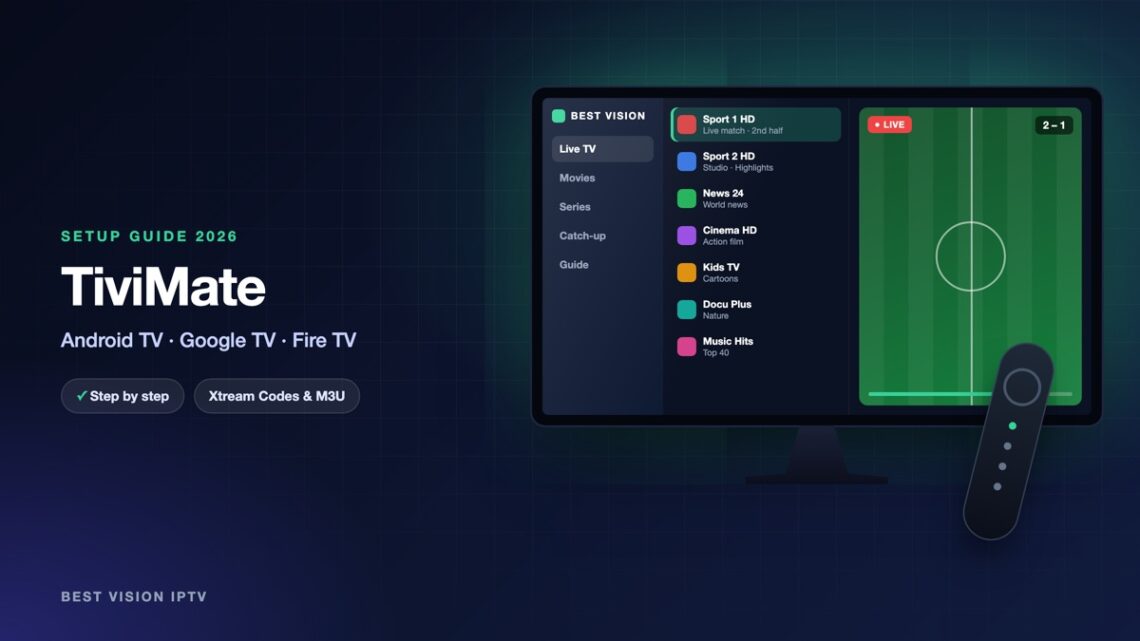
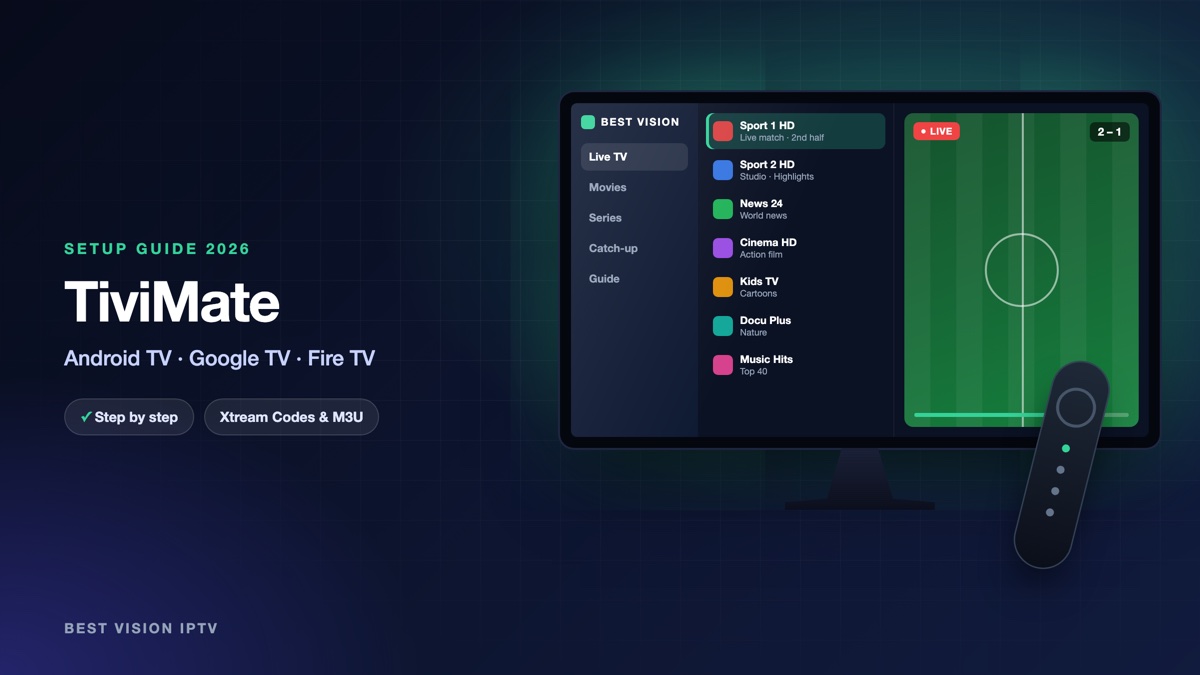
TiviMate is a player made for the television screen. It looks like the guide of a cable box: a channel list on the left, the programme grid on the right, and everything controlled with the arrow keys of the remote. Many of our customers who start with another app move to TiviMate later for exactly that reason. It runs on Android TV, Google TV and Fire TV devices. It is not meant for phones; for those, use the app from our other guides. The TiviMate setup below takes about five minutes.
What you need for the TiviMate setup
- A TV device with Android: a television or box with Android TV or Google TV, a Chromecast with Google TV, an Nvidia Shield, or an Amazon Fire TV Stick.
- Your login from us: server URL, username and password.
- A remote with arrow keys. TiviMate is built around it.
About the price of the app: TiviMate can be used for free with one playlist. Extra functions such as several playlists, recording and catch-up belong to TiviMate Premium, which you buy from the app’s developer through the companion app on an Android phone. Premium is optional and is not part of our subscription.
Step 1: install TiviMate
- Android TV and Google TV: open Google Play on the TV, search for “TiviMate” and install TiviMate IPTV Player.
- Fire TV Stick: TiviMate is not in the Amazon Appstore. Install the free Downloader app, allow it under Settings, My Fire TV, Developer options, Install unknown apps, and download TiviMate with it. The first steps are explained in our Fire TV Stick guide; ask us on WhatsApp for the current download address.
- Open TiviMate when the installation has finished.
Step 2: TiviMate setup with Xtream Codes
- On the welcome screen choose Add playlist.
- Choose Xtream Codes as the playlist type.
- In Server address type the server URL from our email, with http:// and the port.
- Type your Username and Password.
- Select Next. TiviMate checks the login and shows how many channels, films and series it found.
- Give the playlist a name, for example Best Vision, and select Done.
With Xtream Codes the TV guide is linked to the playlist automatically, so there is no separate guide address to enter. If you have an M3U link instead, choose “M3U playlist” in the second step and paste the link.
Step 3: find your way around
- Channel list: press left on the remote to open the groups, up and down to move, OK to play.
- TV guide: press OK while a channel is playing, or open the guide from the menu, to see the grid with all programmes.
- Favourites: press and hold OK on a channel and choose Add to favourites.
- Search: the magnifier at the top of the menu finds channels and programmes by name.
TiviMate settings worth changing
- Hide groups you never watch. Settings, Playlists, your playlist, Manage groups. A shorter list makes zapping faster.
- Update interval. In the playlist settings choose how often TiviMate refreshes the list; once a day is enough.
- Buffer size. Under Settings, Playback, a larger buffer helps on an unstable Wi-Fi connection. Try one step up before changing anything else.
- Start on boot. Under Settings, General, TiviMate can open by itself when the TV device starts, like a normal TV receiver.
- Past days in the guide. In the TV guide settings you can keep earlier days, which is useful together with catch-up.
Troubleshooting the TiviMate setup
| Problem | What to do |
|---|---|
| “Error loading playlist” | Check the server address: http:// in front, port at the end, no space. Then check capital letters in username and password. |
| Playlist loads, guide is empty | Open Settings, EPG, and choose Update EPG. Give it a few minutes on the first run. |
| Buffering | Use a cable or the 5 GHz band, raise the buffer size one step, and restart the router. |
| Black screen on some channels | Under Settings, Playback, switch the decoder option and try the channel again. |
| A Premium function is locked | That function belongs to TiviMate Premium from the app’s developer. Watching live TV works without it. |
Setup guides for other apps and devices
Every app below works with the same login from us. Pick the one for your device:
- Samsung & LG Smart TV: Smart IPTV (Samsung, LG) · IBO Player · SET IPTV · NET IPTV · SS IPTV (LG) · Hot IPTV (HotPlayer) · SmartOne IPTV · Bob Player
- Android, Android TV & Fire TV: IPTV Smarters Pro (Android) · IPTV Smarters (Fire TV Stick) · OTT Navigator · XCIPTV Player · Televizo · STB Emulator (portal) · Kodi · IPTV Extreme
- iPhone, iPad & Apple TV: Smarters Player Lite (iPhone, iPad, Apple TV) · IPTVX · Purple Playlist Player · GSE Smart IPTV · iPlayTV (Apple TV)
- Windows & Mac: IPTV Smarters Pro & VLC (PC, Mac) · MyIPTV Player (Windows)
- TV boxes with a portal: MAG box · Formuler MYTVOnline
A short overview of every device is on the How to use page, the full line-up is in the channels list, and the players are compared in the best IPTV player apps.
Frequently asked questions
Is TiviMate free?
The basic version is free and plays one playlist. TiviMate Premium is an optional purchase from the developer of the app.
Does TiviMate work on a phone?
It is designed for TV devices with a remote. On a phone or tablet, use IPTV Smarters Pro instead.
Does TiviMate include channels?
No. It is a player. The channels come from the subscription you add with your login.
Xtream Codes or M3U in TiviMate?
Xtream Codes. The guide, films and series are set up in one step.
Can I move from IPTV Smarters to TiviMate with the same login?
Yes. The same server URL, username and password work in both apps.
Can I try it before paying?
Yes. Ask for a free trial and do the TiviMate setup with the trial login.
A TiviMate setup takes a few minutes and gives you the closest thing to a classic TV guide. Ask for a free trial and build your channel list on your own TV first.