- What you need for the STB Emulator setup
- Step 1: install StbEmu
- Step 2: find the MAC address in the app
- Step 3: send us the MAC address
- Step 4: STB Emulator setup with the portal URL
- Using the portal, and settings that help
- Troubleshooting the STB Emulator setup
- Setup guides for other apps and devices
- Frequently asked questions
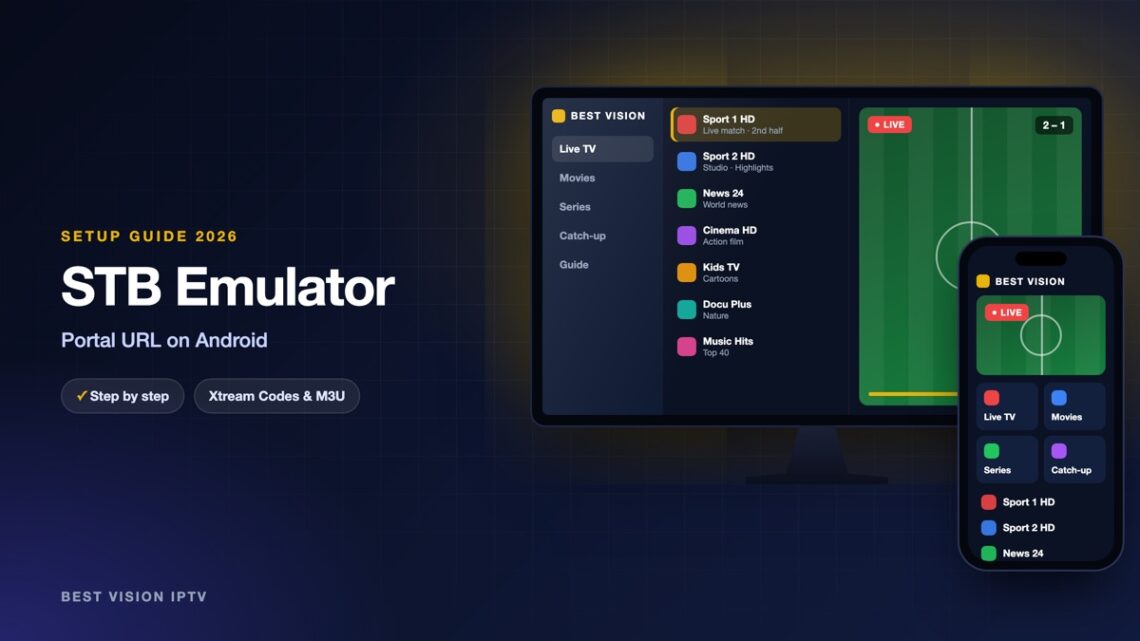
STB Emulator, StbEmu for short, turns an Android device into a virtual MAG box. It loads the same TV portal that a real MAG set-top box shows, with the channel list, the guide and the video club. The app is made by an independent developer, not by us. It has no username and password login, and it cannot open an M3U playlist. It needs two things: a portal URL, and a MAC address that we have registered. The developer says openly that the app is meant for experienced users, because it has many settings. For our portal you only touch a few of them, and this STB Emulator setup guide shows which ones.
What you need for the STB Emulator setup
- An Android device with Google Play. A phone, a tablet or a TV box. The developer names Android 8.0 and newer.
- The MAC address from the app. You find it in step 2. It is not printed on your device.
- The portal URL from us. We send it once the MAC address is registered for your subscription or free trial.
Free or Pro: Google Play has two versions. The free one shows ads. StbEmu Pro has no ads and is a paid app from the developer: 5.49 US dollars in the US store at the time of writing; the price in your country can differ. That money goes to the developer and is separate from our subscription. The free version is enough for a test.
Step 1: install StbEmu
- Open Google Play and search for “StbEmu”.
- Check the developer name: M Vasilchuk. Pick “StbEmu” (free) or “StbEmu (Pro)”. Both are linked from the developer’s download page.
- Select Install and open the app.
On the first start the app opens a demo portal that the developer set up for testing. That is normal. Our portal replaces it in step 4.
Step 2: find the MAC address in the app
- Open the menu of the app. On a touchscreen, tap the screen twice; the menu appears at the top or at the side. With a mouse or an air-mouse remote, click on the screen.
- Choose Settings, then Profiles.
- Open the profile that the app created on the first start.
- Open STB configuration and look at MAC address. It normally starts with 00:1A:79.
- Write the address down or take a photo of it.
Does the field show 00:1A:79:00:00:00? Then the app could not create one, which happens on some Wi-Fi-only devices. Replace the last three pairs with digits and letters A to F of your choice, and keep the colons.
Step 3: send us the MAC address
When you order or ask for a free trial, choose MAG as your device and put the MAC address in the field “MAC / TV ID”. You can also send it on WhatsApp. We register the address and reply with your portal URL. Without a registered address the portal refuses the app. Check every character: one wrong digit is enough.
Step 4: STB Emulator setup with the portal URL
- Open the menu again and go to Settings, Profiles, your profile.
- In Profile name type a name, for example Best Vision.
- Open Portal settings and select Portal URL. Type the address from our message exactly as written.
- Leave the other options alone. Do not change the MAC address after you have sent it to us.
- Go back and reload the portal from the menu of the app, or close the app and open it again. The portal loads and the channels appear.
| Setting | What to enter |
|---|---|
| Profile name | Anything you like. It is only a label. |
| Portal URL | The portal address from our message, with http:// in front. The app does not accept an address without it. |
| STB Model | The MAG model that the app imitates. Keep the preset unless we ask you to change it. |
| MAC address | The address we registered. If you change it, the portal no longer knows the device. |
Using the portal, and settings that help
- Moving around. The portal works like on a MAG box: arrow keys and OK on a remote, or the on-screen buttons on a phone.
- Favourites. The portal keeps your favourite channels on the server, not inside the app.
- Start with the device. Settings, Common settings, “Auto start on device boot”.
- Volume jumps back when you change channel. Switch on “Always use system volume level” in Common settings, then reload the portal.
- A channel does not play. In the profile, “Media player” lets you choose another player. Exo is the default; VLC is the first one to try.
Troubleshooting the STB Emulator setup
| Message or problem | What to do |
|---|---|
| “STB blocked” (shown by the portal) | The portal does not know this MAC address, or the subscription has ended. Send us the MAC address from the profile again so we can compare it. |
| An empty or error page instead of the portal | The Portal URL has a typing mistake or misses http://. Check it letter by letter and test the internet connection. |
| Login errors that come and go | In Common settings switch off “Enable network cache”. The developer advises this when authentication errors appear often. |
| Picture buffers | Use a network cable or 5 GHz Wi-Fi and restart the router. If it stays, tell us the channel and the time. |
Still stuck? Send us a photo of the profile screen on WhatsApp.
Setup guides for other apps and devices
Every app below works with the same login from us. Pick the one for your device:
- Samsung & LG Smart TV: Smart IPTV (Samsung, LG) · IBO Player · SET IPTV · NET IPTV · SS IPTV (LG) · Hot IPTV (HotPlayer) · SmartOne IPTV · Bob Player
- Android, Android TV & Fire TV: IPTV Smarters Pro (Android) · IPTV Smarters (Fire TV Stick) · TiviMate · OTT Navigator · XCIPTV Player · Televizo · Kodi · IPTV Extreme
- iPhone, iPad & Apple TV: Smarters Player Lite (iPhone, iPad, Apple TV) · IPTVX · Purple Playlist Player · GSE Smart IPTV · iPlayTV (Apple TV)
- Windows & Mac: IPTV Smarters Pro & VLC (PC, Mac) · MyIPTV Player (Windows)
- TV boxes with a portal: MAG box · Formuler MYTVOnline
A short overview of every device is on the How to use page, the full line-up is in the channels list, and the players are compared in the best IPTV player apps.
Frequently asked questions
Is STB Emulator free?
There is a free version with ads and a paid Pro version without ads. Both come from the developer of the app, not from us.
Can I use my M3U link or my username and password in StbEmu?
No. The app only loads portals made for MAG boxes. For an M3U link or an Xtream Codes login, use another player.
Where is the MAC address in StbEmu?
Open the menu, then Settings, Profiles, your profile, STB configuration. The line MAC address shows it.
Can I use the portal on a second device?
A portal login is tied to the registered MAC address. Tell us about the second device. How many screens can play at the same time depends on your plan.
Which MAG boxes can the app imitate?
The developer lists models from the MAG 200 and MAG 250 up to the MAG 520 and MAG 524.
Can I test before I pay?
Yes. Send the MAC address from the app with your free-trial request and we set up the trial for it.
The STB Emulator setup needs the MAC address and the portal URL once. After that the app opens straight into your TV portal. Send us your MAC address with a free-trial request and try it.