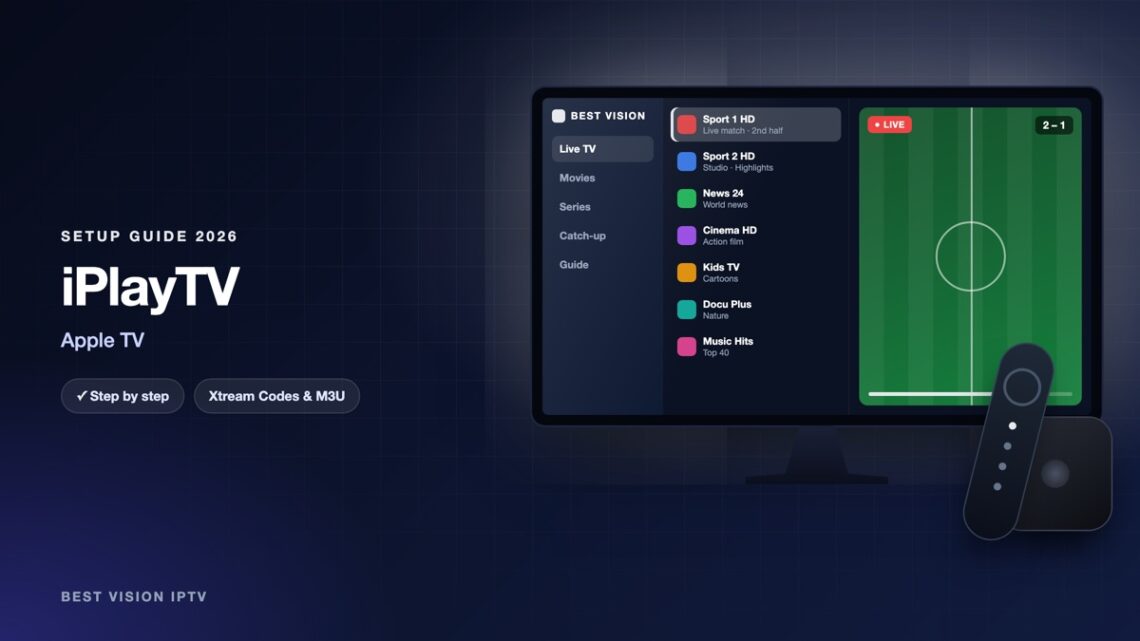
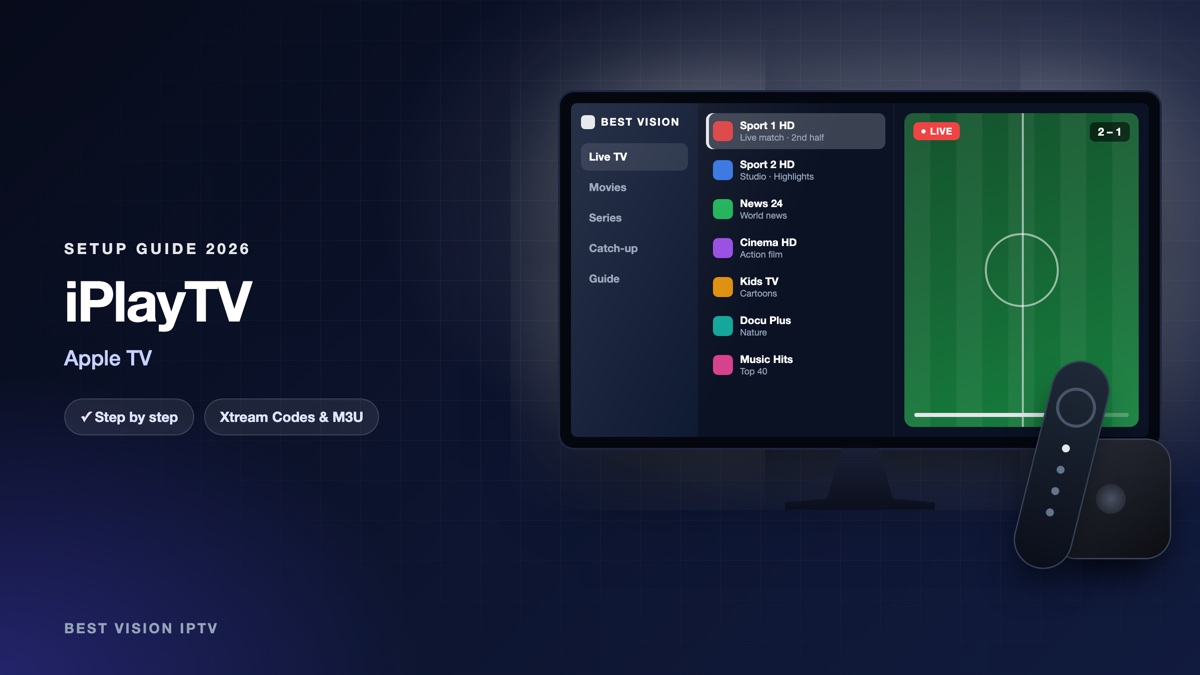
iPlayTV is a player made only for the Apple TV. It does one thing: it takes your playlist and shows it in a clean layout that fits the Apple remote, with live channels, films and a TV guide. There is no iPhone version and no account to create. You install the app, add your login once, and the Apple TV opens your channels from then on. This guide goes through it step by step.
What you need for the iPlayTV setup
- An Apple TV with the App Store (Apple TV HD or Apple TV 4K). At the time of writing the app requires tvOS 18.6 or later, so update the Apple TV first: Settings, System, Software Updates.
- Your login from us. After your order or free trial we email you a username, a password, a server URL and an M3U link.
- An iPhone, if you have one. It is not required, but it makes typing much easier (see step 2).
Good to know: iPlayTV is made by an independent developer, not by us. It is a paid app. In the US App Store it costs $5.99 at the time of writing; the price in your country can differ and is shown before you buy. The purchase goes to the developer through Apple and is separate from your subscription with us.
Step 1: install iPlayTV from the App Store
- On the Apple TV open the App Store and go to Search.
- Type “iPlayTV”. The app you want is listed as iPlayTV – IPTV/M3U Player, from the developer Andre Silva.
- Select the price button and confirm the purchase.
- Open the app when the download has finished.
If the App Store says the app is not compatible, the Apple TV runs an older system version. Install the tvOS update and try again.
Step 2: iPlayTV setup with Xtream Codes
- On the start screen choose Add Playlist.
- The app offers several kinds of playlist. Choose the Xtream one; it is shown as Xtream Server.
- Fill in the fields with the details from our email (see the table below).
- Save. The app connects and loads your channels, films and series. The first time this can take a minute.
| Field | What you type |
|---|---|
| Playlist name | Anything you like, for example “Best Vision”. It is only a label on your screen. |
| Server address | The server URL from our email. It starts with http:// and ends with the port number. |
| Username | The username from our email. Capital and small letters matter. |
| Password | The password from our email, with no space before or after. |
Typing tip. When a text field is active, an iPhone on the same Wi-Fi and the same Apple ID shows a notification called Apple TV Keyboard. Tap it and type on the phone, or paste the value straight from our email.
We recommend the Xtream login. According to the developer, catch-up works with it, and you do not need a separate address for the TV guide.
Alternative: add the M3U link
iPlayTV accepts three kinds of playlist: a remote address, an Xtream login and a file upload. For the M3U link from our email, take the remote option:
- Choose Add Playlist again.
- Pick the option for a remote playlist, the one that asks for an address.
- Give the playlist a name and enter the complete M3U link, from http:// to the last character.
- Save and wait until the list has loaded.
With an M3U link the TV guide can stay empty. The app accepts a separate guide address (EPG URL) for that case. Ask us for it on WhatsApp, or simply use the Xtream login.
After the first start: settings worth knowing
A few functions make the app nicer to use every day:
- Favourites. Mark the channels you watch most. You can also change their order.
- Search. The search looks through all your playlists at once.
- Channel preview. A small preview of the selected channel is available, but it is off by default. Switch it on in the settings if you like it.
- Match frame rate. The app can match the frame rate of the TV to the channel, which can make movement look smoother.
- EPG time shift. If every programme in the guide is one hour early or late, correct it with the EPG time shift setting.
- Audio and subtitles. Where a channel or film has several languages, you choose the audio track and the subtitles during playback.
Keep our email. If the app ever loses a playlist, for example after a big update, you add it again in a minute.
Troubleshooting the iPlayTV setup
| Problem | What to do |
|---|---|
| The App Store does not let you install the app | Update the Apple TV to the newest tvOS version under Settings, System, Software Updates. |
| The playlist does not load | Check the server address: http:// in front, port at the end, no space. Then check capital letters in the username and password. |
| The TV guide is empty | Give it a few minutes after the first load. With an M3U link, add the guide address or switch to the Xtream login. |
| Programme times are wrong | Use the EPG time shift setting to move the guide by the missing hours. |
| The picture stutters | Connect the Apple TV to the router with a network cable, or move the router closer. Restart both devices. |
| No sound on one channel | Choose another audio track during playback, or start the channel again. |
For questions about the app itself, the developer offers support by email and on Discord; both are listed on the App Store page. For anything about your login or the channels, write to us on WhatsApp.
Setup guides for other apps and devices
Every app below works with the same login from us. Pick the one for your device:
- Samsung & LG Smart TV: Smart IPTV (Samsung, LG) · IBO Player · SET IPTV · NET IPTV · SS IPTV (LG) · Hot IPTV (HotPlayer) · SmartOne IPTV · Bob Player
- Android, Android TV & Fire TV: IPTV Smarters Pro (Android) · IPTV Smarters (Fire TV Stick) · TiviMate · OTT Navigator · XCIPTV Player · Televizo · STB Emulator (portal) · Kodi · IPTV Extreme
- iPhone, iPad & Apple TV: Smarters Player Lite (iPhone, iPad, Apple TV) · IPTVX · Purple Playlist Player · GSE Smart IPTV
- Windows & Mac: IPTV Smarters Pro & VLC (PC, Mac) · MyIPTV Player (Windows)
- TV boxes with a portal: MAG box · Formuler MYTVOnline
A short overview of every device is on the How to use page, the full line-up is in the channels list, and the players are compared in the best IPTV player apps.
Frequently asked questions
Is iPlayTV free?
No. It is a paid app in the App Store of the Apple TV. The price is shown before you buy and goes to the developer, not to us.
Does iPlayTV work on an iPhone or iPad?
No. The App Store lists it for Apple TV only. On an iPhone or iPad, use one of the players from our other guides with the same login.
Does the app include channels?
No. It is a player. The channels come from the subscription you add with your login.
Xtream Codes or M3U in iPlayTV?
Xtream Codes. The guide, films, series and catch-up are set up in one step.
Can I add more than one playlist?
Yes, the app supports several playlists. How many screens can play our subscription at the same time depends on your plan.
Can I test the subscription first?
Yes. Ask for a free trial and do the iPlayTV setup with the trial login. The app itself is a separate purchase.
The iPlayTV setup is done once: install, add the playlist, save. After that the Apple TV behaves like a normal TV receiver. Ask for a free trial and test it on your own screen first.