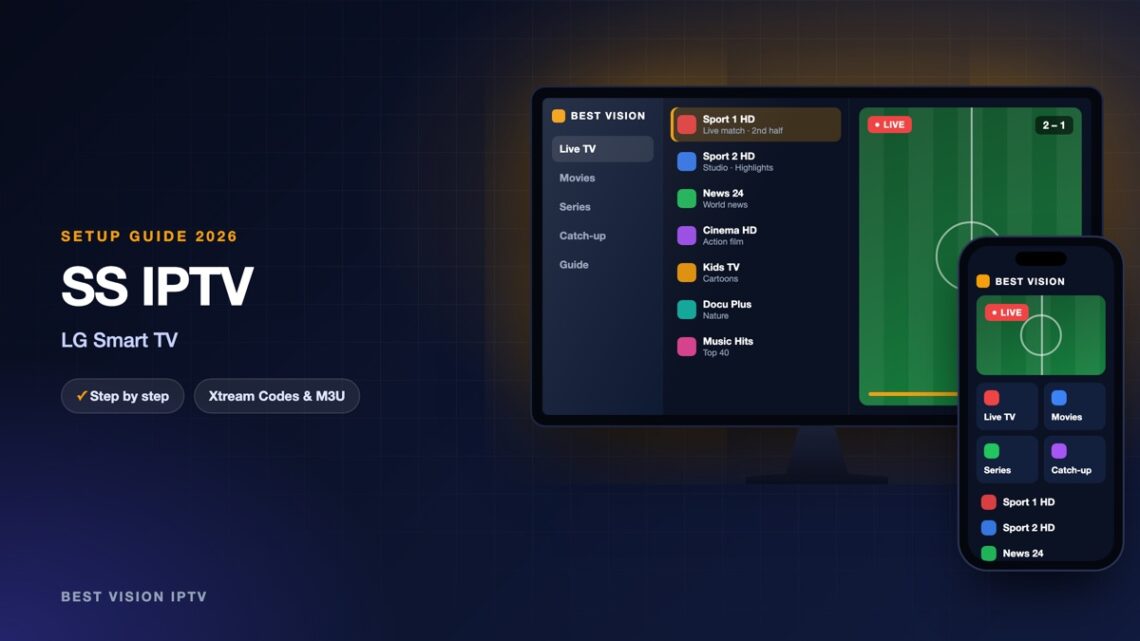
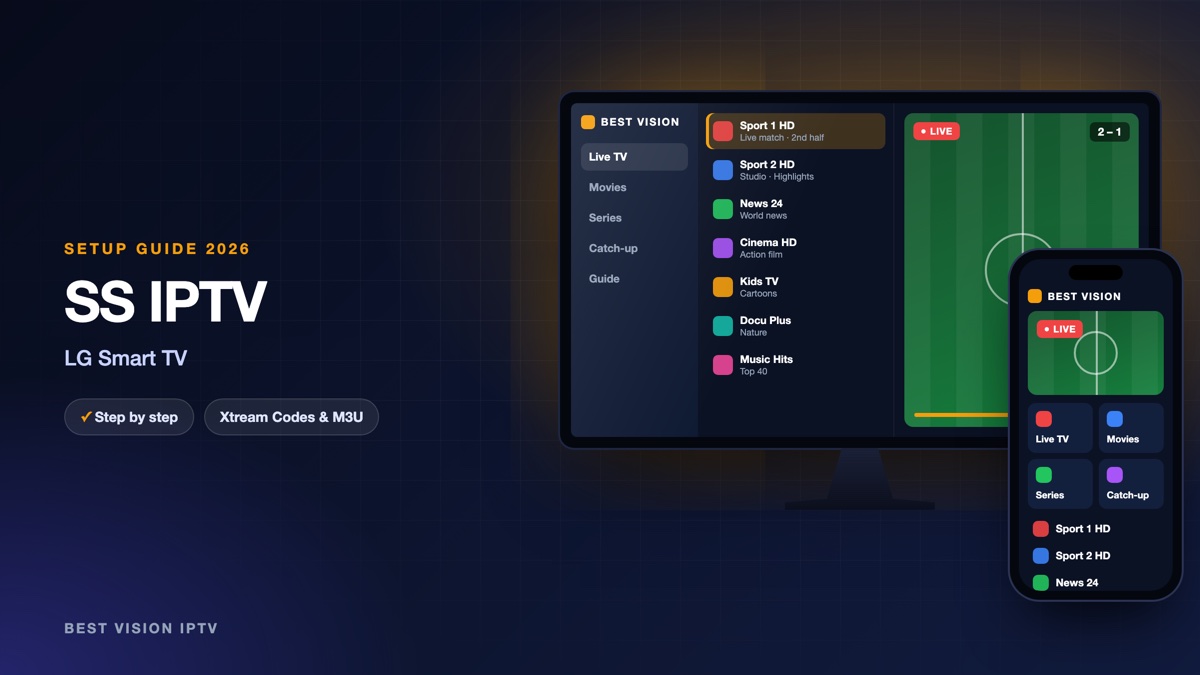
SS IPTV is a free player that runs on the television itself, so you need no box and no stick. It has been around for many years and is best known on LG televisions. The app works with playlists. There is no form for a username and a password; you give it the M3U link from our email instead. You can do that in two ways: type the link on the TV, or upload the playlist from a computer with a short code. This guide explains both, and it tells you where things stand for Samsung, because that is different from LG.
What you need for the SS IPTV setup
- A Smart TV that can install the app. That means an LG Smart TV, or an older Samsung model (see step 1).
- Your M3U link. We email it after your order or free trial. It is one long address that starts with http://.
- A computer, only if you choose the upload with a code.
Good to know: SS IPTV is made by an independent developer, not by us. The developer states that the app is free and has no activation process. It contains no channels of ours; they come from your subscription.
Step 1: install SS IPTV on the TV
- LG: press Home, open the LG Content Store, search for “SS IPTV” and install it. The developer says the app can be installed from the official LG store in any country.
- Samsung: the developer states that the app is not available in the Samsung app store (Smart Hub). For Samsung models from 2012 to 2019 the developer’s website offers files that are installed from a USB stick; the steps are on its page “Installing the app”. For a newer Samsung TV there is no official way.
If you have a Samsung TV and the USB method is not for you, tell us the model on WhatsApp. We name a player that is in your TV’s store, and your login stays the same. One honest note: SS IPTV is an old app and is rarely updated, so on a very new TV another player can be the better choice.
Step 2: SS IPTV setup with your M3U link
- Open SS IPTV and press the Settings button on the main screen.
- Open the section Content.
- Choose External playlists.
- Press Add at the bottom of the screen.
- Enter a title and the M3U link in the two fields (see the table below).
- Press Save.
- Go back to the main screen. A new tile with your title is there. Open it to see the channels.
| Field | What you type |
|---|---|
| Title | Anything you like, for example “Best Vision”. It becomes the name of the tile. |
| Link | The complete M3U link from our email, from http:// to the last character. |
Typing a long link with the TV remote takes patience. Compare every character: capital and small letters matter. The advantage of this method is that the link stays live. When channels change on our side, the TV picks them up by itself.
Alternative: upload the playlist with a code
If you do not want to type the link on the TV, send the playlist from a computer:
- On the computer, paste the M3U link into the address bar of the browser. The browser normally downloads the playlist as a file.
- On the TV, open Settings in SS IPTV, go to General and press Get code. The code is valid for 24 hours, or until you ask for a new one.
- On the computer, open the developer’s playlist editor, enter the code and click Add Device.
- Click Open, choose the downloaded file and click Save.
- On the TV the list appears under the tile My Playlist.
A file is a copy. It does not update itself, and a new upload replaces the old one. If we send you a new link later, repeat these steps.
After the first start
- PIN question. Parental control is switched on by default. If the app asks for a PIN, the default one named by the developer is 12345. You can change it or switch the function off in the settings.
- Order of channels. For an uploaded playlist, the playlist editor on the computer lets you drag channels into the order you like and save again.
- Speed. The developer names 5 Mbit/s for SD, 10 Mbit/s for HD and 30 Mbit/s for 4K as the minimum.
- Cable. Connect the TV to the router with a network cable if you can.
Troubleshooting the SS IPTV setup
| Message or problem | What to do |
|---|---|
| “Failed to load remote content” | The app cannot open the address you entered. Compare the link with our email character by character. If it is correct, send us a photo of the screen. |
| Black or white screen when the app starts | Check the internet connection of the TV. The developer also advises setting a public DNS server, such as 8.8.8.8 or 1.1.1.1, in the network settings of the TV. |
| Sound but no picture | According to the developer, the TV does not support the video format of that channel. Tell us which channel failed. |
| Playback stops after a while | Test the speed of your connection and use a cable instead of Wi-Fi. |
| The code is not accepted | It has expired or a newer one was created. Press Get code again and use the new code. |
| The app is not in the Samsung store | That is expected. See step 1. |
Setup guides for other apps and devices
Every app below works with the same login from us. Pick the one for your device:
- Samsung & LG Smart TV: Smart IPTV (Samsung, LG) · IBO Player · SET IPTV · NET IPTV · Hot IPTV (HotPlayer) · SmartOne IPTV · Bob Player
- Android, Android TV & Fire TV: IPTV Smarters Pro (Android) · IPTV Smarters (Fire TV Stick) · TiviMate · OTT Navigator · XCIPTV Player · Televizo · STB Emulator (portal) · Kodi · IPTV Extreme
- iPhone, iPad & Apple TV: Smarters Player Lite (iPhone, iPad, Apple TV) · IPTVX · Purple Playlist Player · GSE Smart IPTV · iPlayTV (Apple TV)
- Windows & Mac: IPTV Smarters Pro & VLC (PC, Mac) · MyIPTV Player (Windows)
- TV boxes with a portal: MAG box · Formuler MYTVOnline
A short overview of every device is on the How to use page, the full line-up is in the channels list, and the players are compared in the best IPTV player apps.
Frequently asked questions
Is SS IPTV free?
Yes. The developer states that the app is free to use and has no activation. Your subscription with us is separate.
Does SS IPTV work on Samsung?
It is not in the Samsung app store. The developer offers a USB installation for models from 2012 to 2019. For newer Samsung TVs we recommend another player.
Why is there no username and password field?
The app works with playlists. You add the M3U link once, as an external playlist or as an uploaded file.
The app asks for a PIN. Which one?
The default PIN named by the developer is 12345. It belongs to the parental control of the app.
Do I have to add the playlist again after renewing?
No. If your link stays the same, the external playlist keeps working. Only a new link has to be entered again.
Can I try it on my own TV first?
Yes. Ask for a free trial and do the SS IPTV setup with the trial link. How many screens can play at the same time depends on your plan.
The SS IPTV setup is one link in one menu, and after that the TV starts with your channels. Ask for a free trial and test it on your own LG or Samsung first.