- What you need for the Hot IPTV setup
- Step 1: install the app on your TV
- Step 2: Hot IPTV setup on the upload page
- Alternative: scan the QR code in the app
- Trial and activation of the app
- After the first start: settings worth knowing
- Troubleshooting the Hot IPTV setup
- Setup guides for other apps and devices
- Frequently asked questions
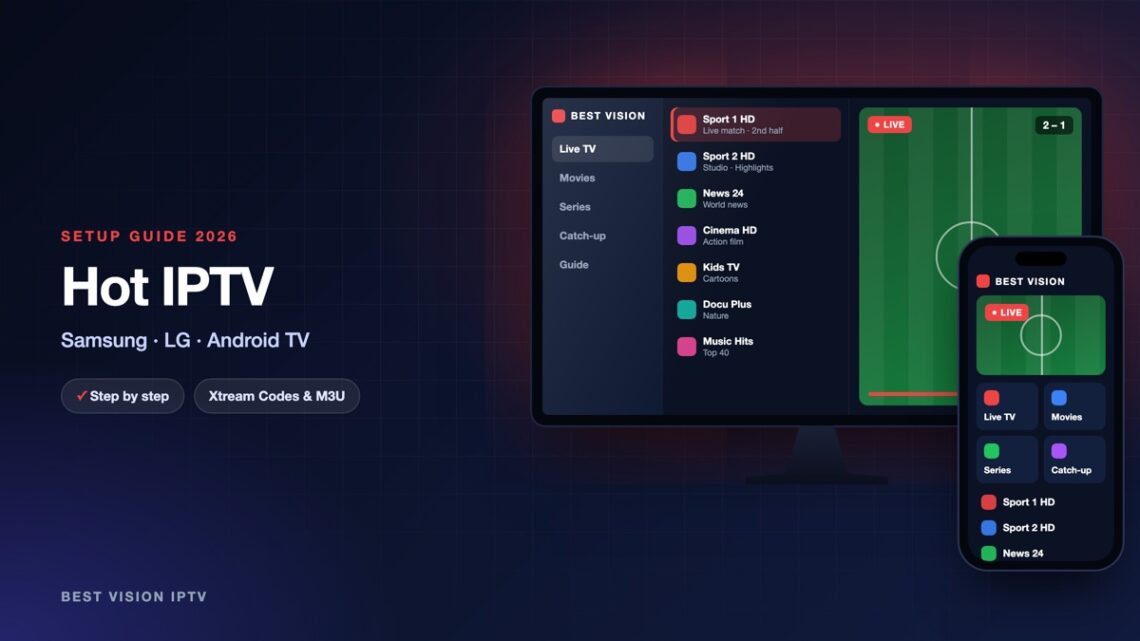
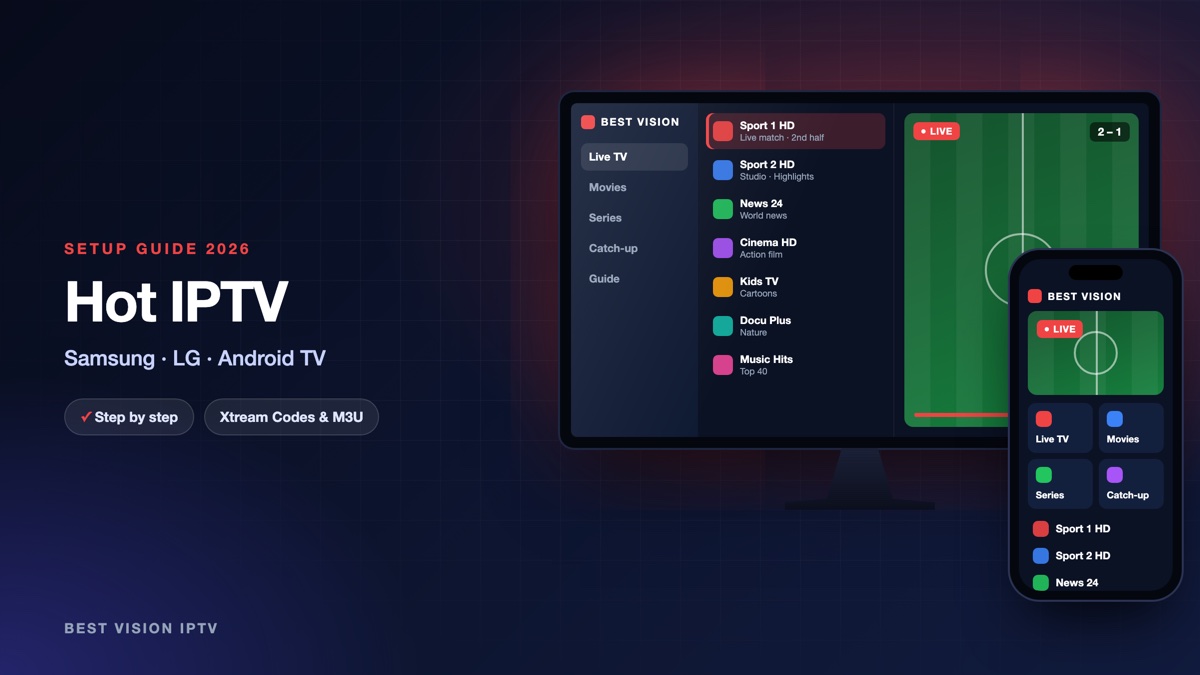
Hot IPTV is a player for Smart TVs and Android TV devices. One thing first, because it causes confusion: the developer lists the app under the name HotPlayer (in some stores “Hot Player”), so that is the name to look for. You do not type your login on the TV. The app shows a MAC address, and you send your playlist to that address from a web page. It takes about five minutes.
What you need for the Hot IPTV setup
- A TV or TV box. A Samsung or LG Smart TV, or a device with Android TV.
- Your login from us. After your order or free trial we email you the Xtream Codes details (username, password, server URL) and an M3U link. The app accepts both.
- A phone or computer to open the upload page.
Good to know: the app is made by an independent developer, not by us. According to the developer, every new installation gets a free 30-day trial. After that the app needs an activation for that device: a one-time payment for the period you choose. The current prices are on the developer’s website. This fee goes to the developer and is separate from your subscription with us.
Step 1: install the app on your TV
- Samsung and LG: open the app store of the TV and search for “HotPlayer” (also try “Hot Player”). The developer notes that availability can depend on the TV model and the country.
- Android TV: the developer offers the Android file (APK) on its own download address, apk.hotplayer.app. The Downloader app can fetch it too, with the code 395800.
Open the app when it is installed. It shows the MAC address of your device, six pairs of letters and numbers. Take a photo of it. If the app is not in your TV’s store, tell us the model and we recommend another player.
Step 2: Hot IPTV setup on the upload page
- On your phone or computer open hotplayer.app/upload.
- Type the address from your TV in the field Your MAC Address and press Next.
- Under “Your playlists”, choose the source Xtream Code. If you prefer the M3U link, choose Link.
- Fill in the fields (see the table below).
- Press Save. The page confirms that the playlists were saved.
- Restart the app on the TV. Your channels, films and series load.
| Field | What you type |
|---|---|
| Playlist name | Anything you like, for example “Best Vision”. |
| Host | The server URL from our email. It starts with http:// and ends with the port number. |
| Username | The username from our email. Capital and small letters matter. |
| Password | The password from our email, with no space before or after. |
| Link (only for the source “Link”) | The complete M3U link from our email. |
Important: saving on this page replaces the playlists that are already on the device. If you use more than one playlist, enter them all before you save. The developer says the app holds up to three.
Alternative: scan the QR code in the app
The developer recommends a second way, and it is the easier one once the app is running. Open Settings or Info in the app. A QR code is shown there. Scan it with your phone. A page opens where you can add, change or delete playlists for this TV, without removing the ones that are already there.
Trial and activation of the app
To keep using the app after the 30 days, the device has to be activated on the developer’s website, on the page called Activation, with the same MAC address. One activation is valid for one device. After the payment, restart the app or press Refresh. We mention this so it does not come as a surprise: it has nothing to do with your Best Vision subscription, and we do not receive it.
After the first start: settings worth knowing
- Lock. In Settings you can switch on Lock. Then nobody can change or delete your playlist from the website. Switch it off again before you change the playlist yourself.
- Parental PIN. The app can lock or hide content with a PIN. The default PIN named by the developer is 0000.
- Favourites and search. Save your regular channels in the favourites list, and use the search to find a channel, film or series by name.
- More than one playlist. You switch between saved playlists inside the app.
Troubleshooting the Hot IPTV setup
| Message or problem | What to do |
|---|---|
| “MAC Invalid” or “Mac not found” on the upload page | Check the address character by character. The letter O and the number 0 are easy to mix up. |
| “Unreachable” in the app | The app cannot reach the server. Check the host, username and password. It also appears when a subscription has ended or too many screens play at once. Write to us and we check it. |
| “Invalid list” | The link or the details were entered incorrectly. Upload them again from our email. |
| The playlist cannot be changed | Lock is switched on. Switch it off in the Settings of the app first. |
| “Unexpected Data Error” | According to the developer this can follow a reset or a change of device. Contact the support of the app with your MAC address. |
| Paid, but the app still shows the trial | Close the app completely and open it again, or press Refresh. The activation can take a few minutes. |
Setup guides for other apps and devices
Every app below works with the same login from us. Pick the one for your device:
- Samsung & LG Smart TV: Smart IPTV (Samsung, LG) · IBO Player · SET IPTV · NET IPTV · SS IPTV (LG) · SmartOne IPTV · Bob Player
- Android, Android TV & Fire TV: IPTV Smarters Pro (Android) · IPTV Smarters (Fire TV Stick) · TiviMate · OTT Navigator · XCIPTV Player · Televizo · STB Emulator (portal) · Kodi · IPTV Extreme
- iPhone, iPad & Apple TV: Smarters Player Lite (iPhone, iPad, Apple TV) · IPTVX · Purple Playlist Player · GSE Smart IPTV · iPlayTV (Apple TV)
- Windows & Mac: IPTV Smarters Pro & VLC (PC, Mac) · MyIPTV Player (Windows)
- TV boxes with a portal: MAG box · Formuler MYTVOnline
A short overview of every device is on the How to use page, the full line-up is in the channels list, and the players are compared in the best IPTV player apps.
Frequently asked questions
Is Hot IPTV the same app as HotPlayer?
This guide is about the app that its developer lists as HotPlayer, with the upload page on hotplayer.app. Many people know it as Hot IPTV.
Is the app free?
According to the developer it is free for 30 days on each new installation. After that it needs a one-time activation per device, paid to the developer.
Where do I find the MAC address?
Open the app on the TV. It shows the MAC address; note it exactly, with the colons.
Xtream Codes or M3U link?
The app accepts both. We suggest Xtream Codes: the server URL is short, and films and series come with it.
Can I use it on two TVs?
Yes, but each TV has its own MAC address, its own upload and its own activation. How many screens can play at the same time depends on your plan.
Can I try it first?
Yes. Ask for a free trial and do the Hot IPTV setup with the trial login while the app is in its own trial period.
The Hot IPTV setup comes down to one MAC address and one upload. After that the TV opens your channels by itself. Ask for a free trial and test it on your own screen.