- What you need for the SmartOne IPTV setup
- Step 1: install SmartOne IPTV on your TV
- Step 2: note the MAC address
- Step 3: add your playlist on the Upload Playlist page
- After the first start: guide, favourites and groups
- Free trial and activation
- Troubleshooting the SmartOne IPTV setup
- Setup guides for other apps and devices
- Frequently asked questions
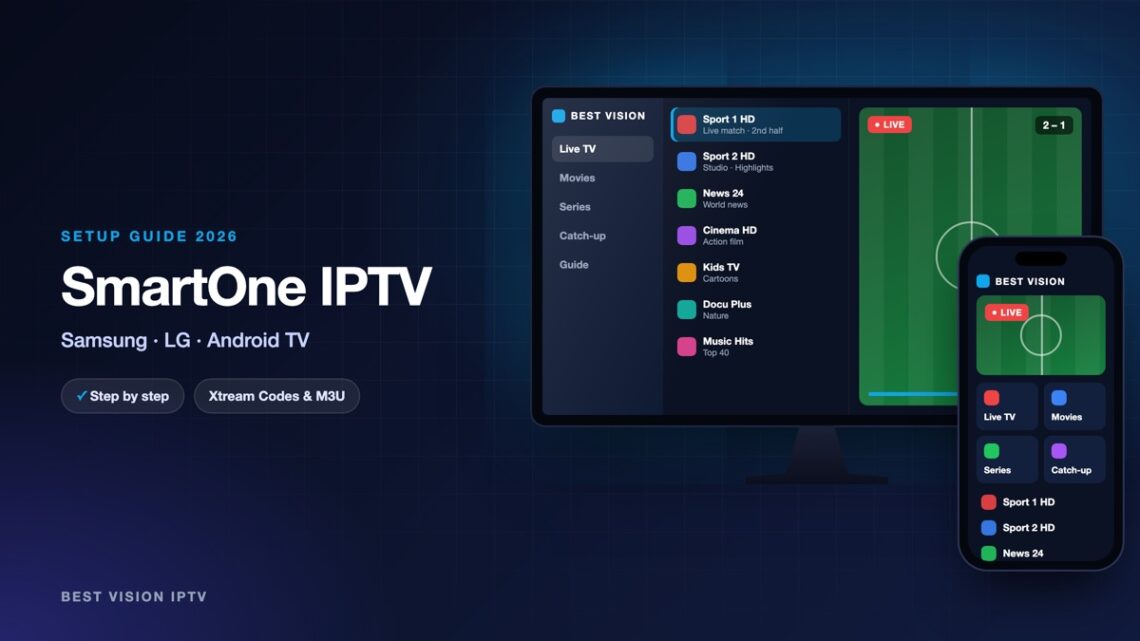
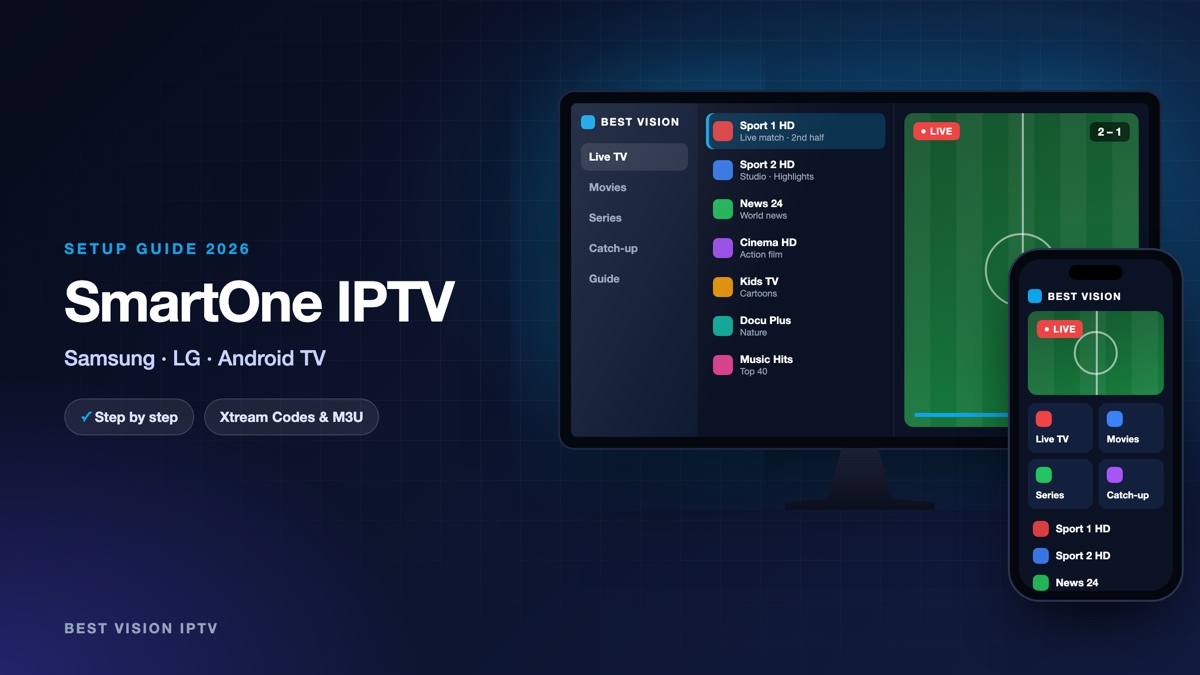
SmartOne IPTV is a player that runs directly on many Smart TVs, so you need no box or stick. It is very popular in Spain. You do not type your login on the TV with the remote. You add your playlist on the SmartOne website from a phone or computer, and the TV picks it up the next time the app starts. This guide shows each step with the exact names you will see.
What you need for the SmartOne IPTV setup
- A supported TV or device. The developer lists Samsung, LG, Hisense and other VIDAA TVs, Panasonic, TCL and Sharp models with Foxxum, Vestel-based TVs, Android TV, Google TV and Amazon Fire TV.
- Your login from us. After your order or free trial we email you a username, a password and a server URL (Xtream Codes), plus an M3U link.
- A phone or computer with a browser.
Good to know: SmartOne IPTV is made by an independent developer, not by us, and it contains no channels. The app has a free test period. After that the developer asks for a licence per TV. That fee goes to the developer and is separate from your subscription with us.
Step 1: install SmartOne IPTV on your TV
- Samsung: open Apps, search for “SmartOne IPTV” and install it.
- LG: open the LG Content Store and search for “SmartOne IPTV”.
- Android TV and Google TV: install the app from Google Play on the TV.
- Find SmartOne IPTV in your apps list and open it.
For other brands, see “Instructions” on smartone-iptv.com. If your TV store does not have the app, send us your TV model on WhatsApp.
Step 2: note the MAC address
When the app opens, it shows the MAC address of your TV: six pairs of letters and numbers. Take a photo of the screen. You need the address in the next step.
- Two addresses. A TV has one address for cable and one for Wi-Fi. According to the developer, the second one is activated by itself after you switch connection type and restart the app.
- Some LG TVs. On some LG webOS models the TV hides its real MAC address. The app then gives the TV its own unique address, which stays the same.
Step 3: add your playlist on the Upload Playlist page
- On your phone or computer open smartone-iptv.com and choose Upload Playlist in the menu.
- Pick the tab Xtream Server Info.
- Fill in the fields as in the table below.
- Press Add Playlist.
- On the TV, close SmartOne IPTV and open it again. The app loads the playlist by itself.
| Field | What you type |
|---|---|
| Tv MAC | The MAC address shown in the app on your TV. |
| Account Name | Any label, for example “Best Vision”. |
| Server Adress | The first part of the server URL from our email: http:// and the address, without the colon and the number at the end. |
| Server Port | The number after the last colon of the server URL. If there is no number, the developer says to use 80. |
| Username | The username from our email. Capital and small letters matter. |
| Password | The password from our email, with no space before or after. |
| Note (Optional) | Leave it empty. |
Prefer one link? Use the tab Xtream Playlist instead and paste the M3U link from our email in the field “Playlist”. Do not use the tab “M3u Playlist”: the page says it is for simple M3U files. The “Smart Key” the page creates is not needed on the TV.
After the first start: guide, favourites and groups
- TV guide. Go to Settings, Setup, Epg Info, and choose Enable. The programme information then loads in the channel list.
- Favourites. Open a channel, select the heart icon in the top menu and press OK. Your favourites appear as their own category.
- Hide groups. On a category, press the right arrow and choose hide. To bring it back, go to Settings, Setup, Hidden Categories.
- Use a cable. A network cable gives a calmer picture than the Wi-Fi of a TV.
Free trial and activation
At the time of writing, the activation page of the developer says you have 15 days to test the app before you pay. After that, a licence for one TV costs 2.50 euros for one year or 12.99 euros for life, at the time of writing. You pay it on the “Activation” page of the same website, with the same MAC address. The developer gives no refunds and asks you to tick that you tested the app first. So test it together with our free trial, and activate only when everything plays well. We do not receive this fee.
Troubleshooting the SmartOne IPTV setup
| Message or problem | What to do |
|---|---|
| “Loading timeout” on the TV | The TV cannot reach the server. Restart the router, switch the TV off and on, then open the app again. If it stays, reinstall the app. |
| Playlist added, TV still shows nothing | Close the app completely and open it again. Check that you typed the MAC address the app shows now. |
| Login refused | Check the Server Port: it is only the number, and Server Adress has no number at the end. Copy the details from our email again. |
| Channels freeze | Use a network cable or the 5 GHz Wi-Fi band and restart the router. |
| Only the demo content appears | No playlist is linked to this MAC address yet. Repeat step 3 with the address shown on the TV. |
To start from zero, go to Settings, Setup, Reset App. Still stuck? Send us a photo of the TV screen on WhatsApp.
Setup guides for other apps and devices
Every app below works with the same login from us. Pick the one for your device:
- Samsung & LG Smart TV: Smart IPTV (Samsung, LG) · IBO Player · SET IPTV · NET IPTV · SS IPTV (LG) · Hot IPTV (HotPlayer) · Bob Player
- Android, Android TV & Fire TV: IPTV Smarters Pro (Android) · IPTV Smarters (Fire TV Stick) · TiviMate · OTT Navigator · XCIPTV Player · Televizo · STB Emulator (portal) · Kodi · IPTV Extreme
- iPhone, iPad & Apple TV: Smarters Player Lite (iPhone, iPad, Apple TV) · IPTVX · Purple Playlist Player · GSE Smart IPTV · iPlayTV (Apple TV)
- Windows & Mac: IPTV Smarters Pro & VLC (PC, Mac) · MyIPTV Player (Windows)
- TV boxes with a portal: MAG box · Formuler MYTVOnline
A short overview of every device is on the How to use page, the full line-up is in the channels list, and the players are compared in the best IPTV player apps.
Frequently asked questions
Is SmartOne IPTV free?
It has a free test period. After that the developer asks for a licence per TV, paid on its own website. This is separate from your subscription.
Where do I find the MAC address?
Open the app on the TV. The MAC address is shown on the screen.
Which tab should I use on the Upload Playlist page?
Use “Xtream Server Info” with your username and password, or “Xtream Playlist” with the M3U link from our email.
Does SmartOne IPTV include channels?
No. It is only a player. The channels come from your own subscription.
Can I use one subscription on two TVs?
Yes. Repeat the SmartOne IPTV setup with the MAC address of the second TV. How many screens can play at the same time depends on your plan.
Can I test before I pay?
Yes. Ask for a free trial and do the SmartOne IPTV setup with the trial login.
One MAC address, one web form and one restart: that is the whole SmartOne IPTV setup. Ask for a free trial and test it on your own TV before you decide.